
This guide shows how to allow camera and microphone access in Chrome on an Android phone or tablet so you can join a Blitzz video call.
Allow camera and mic when you join a call
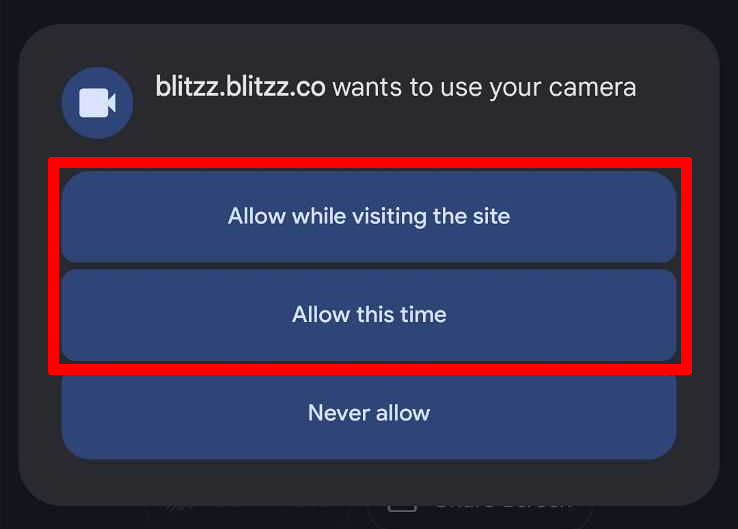
When you join a Blitzz call and tap Start Video, Chrome asks for camera and microphone access. Tap Allow (or Allow while visiting the site) for both.
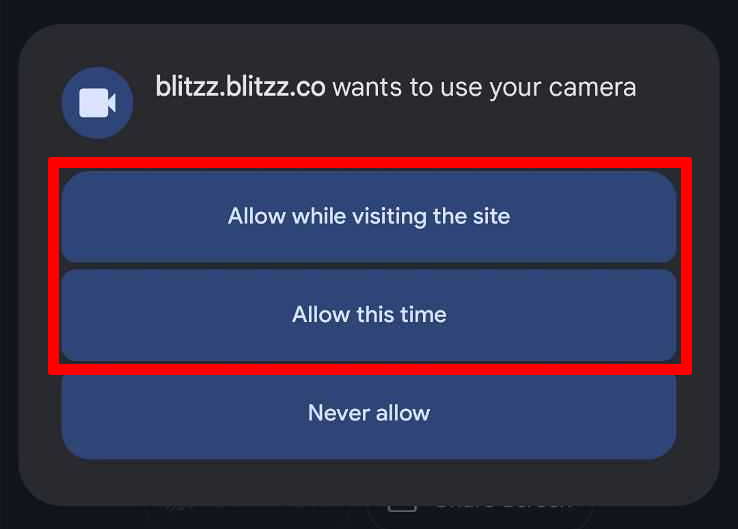
If you tapped Block or Don't allow by mistake, the camera or mic stays blocked. Follow the steps below to turn it back on.
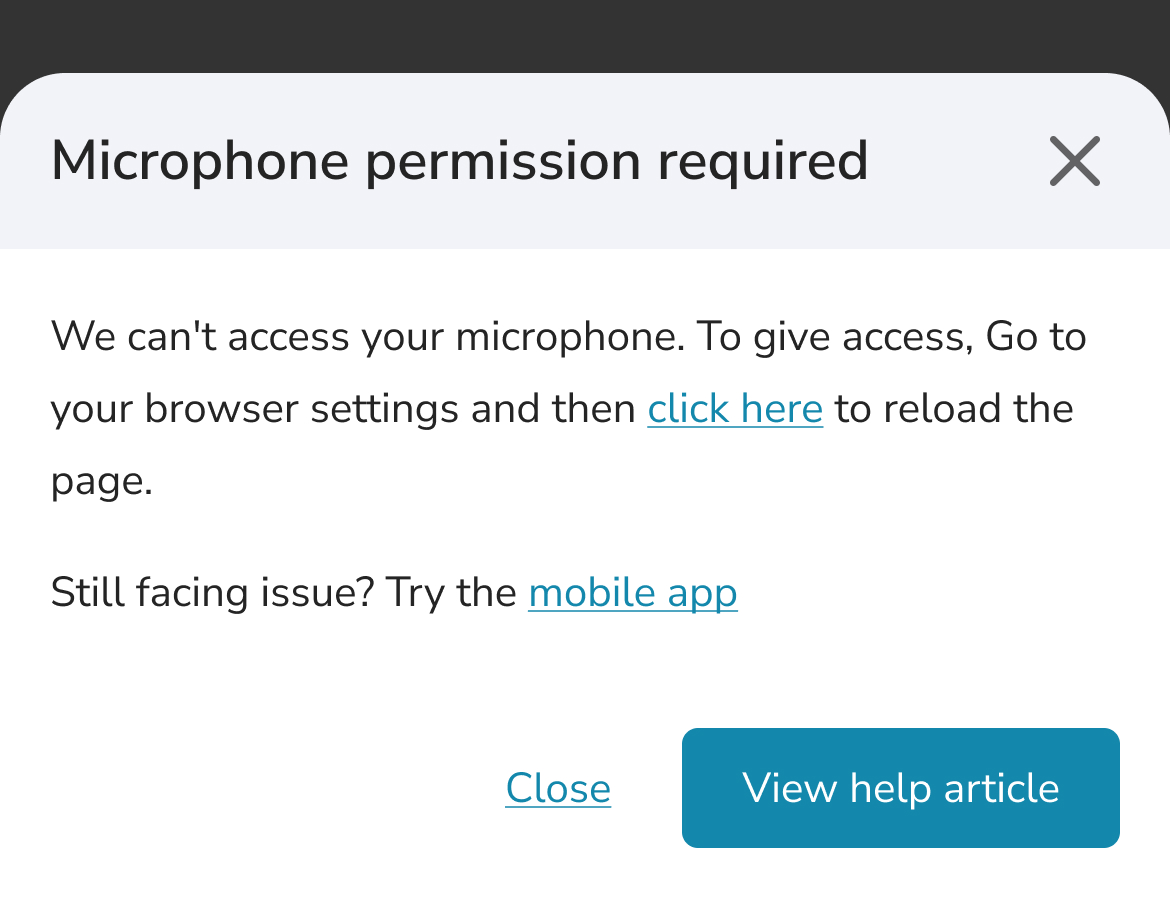
How to re-enable a blocked camera or mic in Chrome
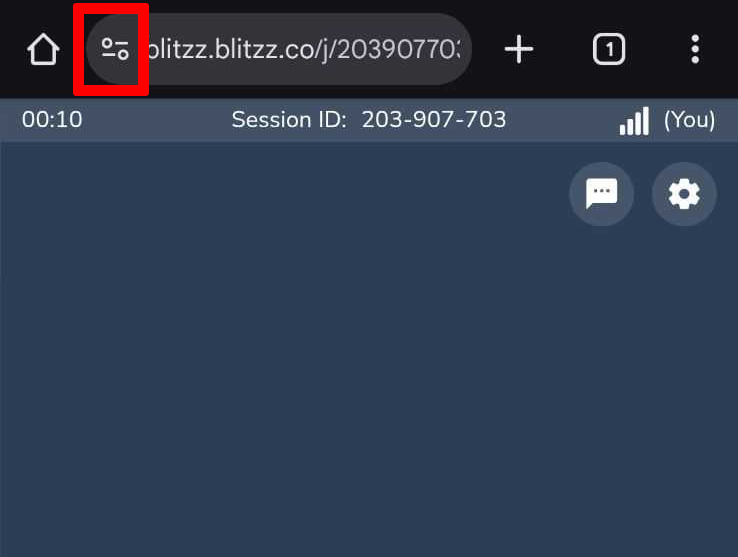
Step 1: Open site settings
Tap the Tune icon at the left of the address bar.
Step 2: Open Permissions
Tap Permissions.
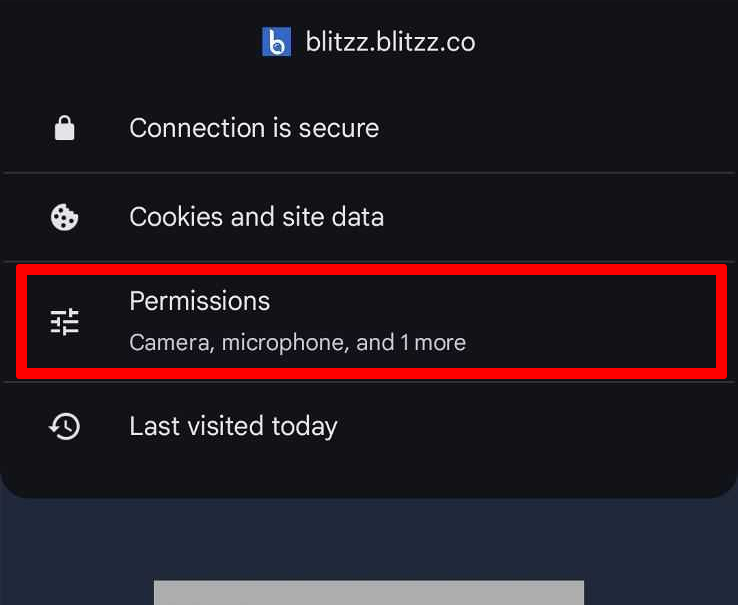
Step 3: Reset permissions
Tap Reset permission.
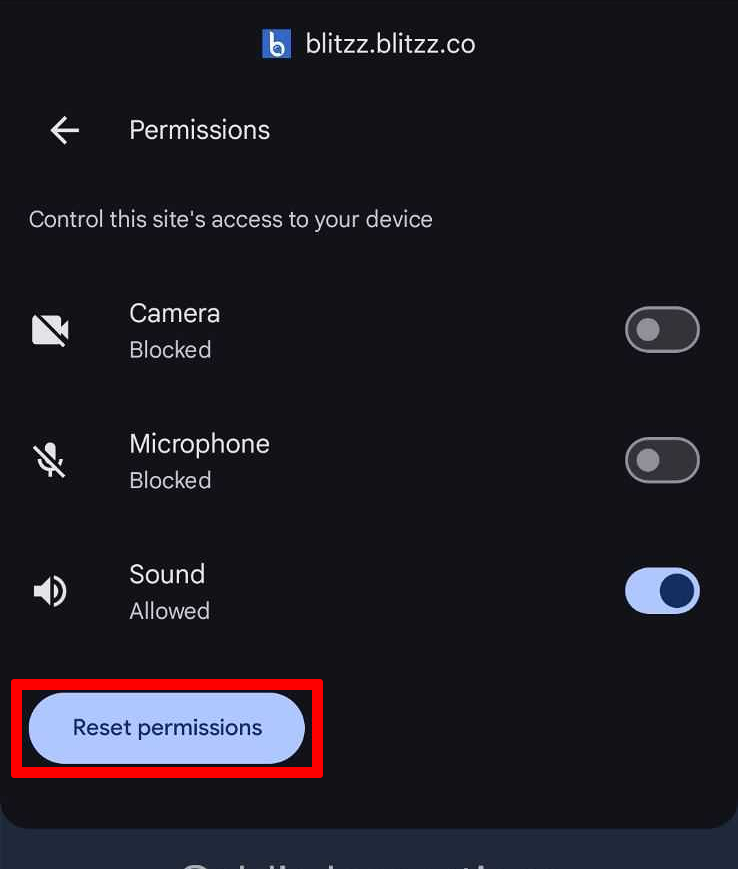
Step 4: Reload and allow access
Open the call again from the link in your email or SMS. When prompted, tap Allow for both the camera and the microphone.
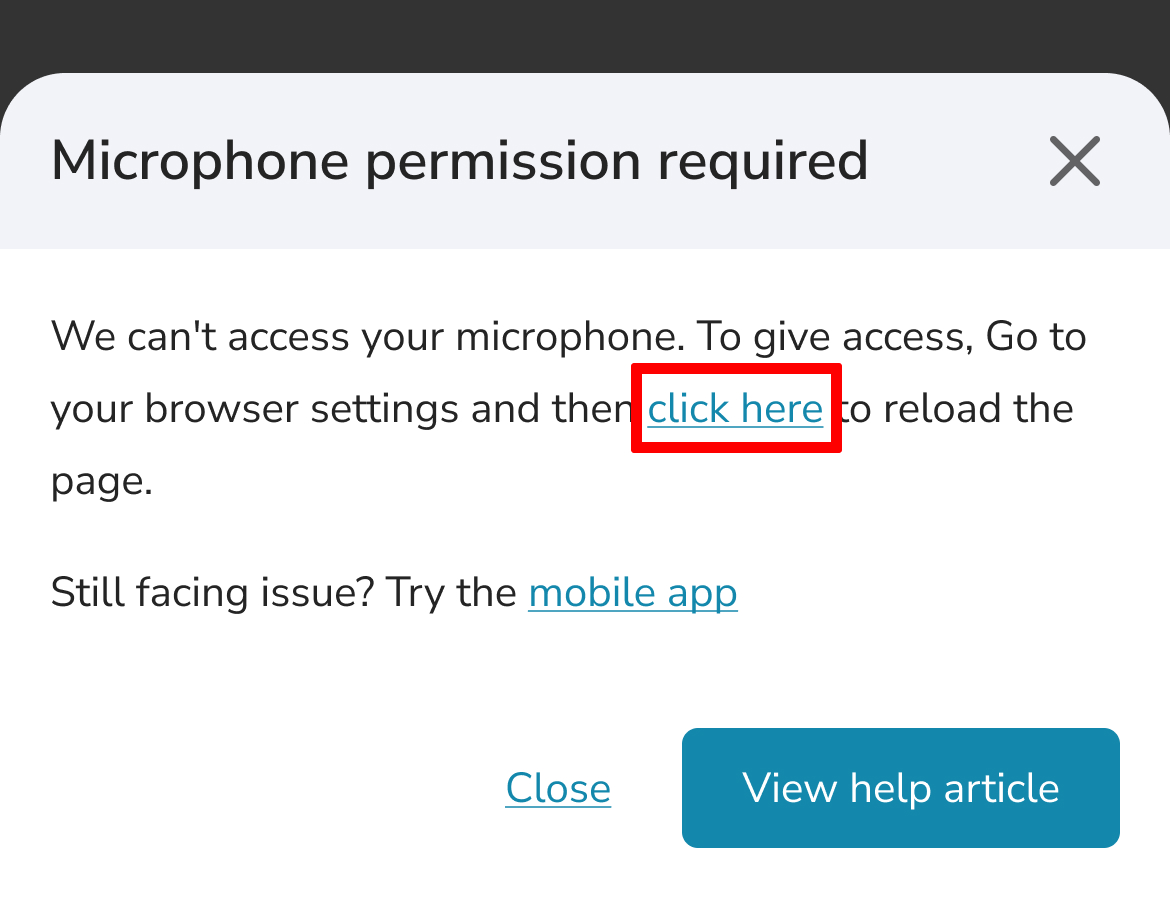
Still blocked? Reset Chrome app permissions on Android
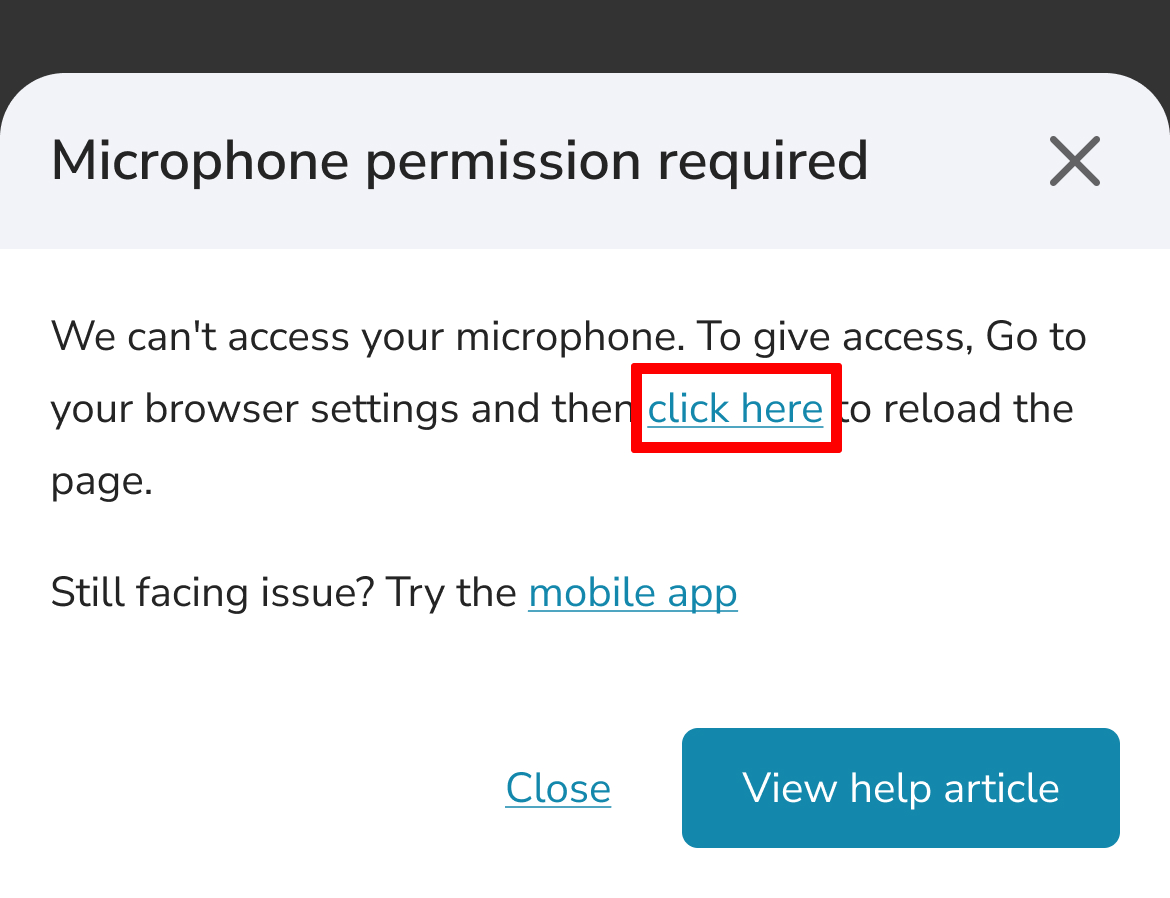
If the camera or mic still does not work, check the Chrome app permissions in your Android settings.
Step 1: Open Settings
Open the Settings app on your device.
Step 2: Open Apps
Scroll down and tap Apps.
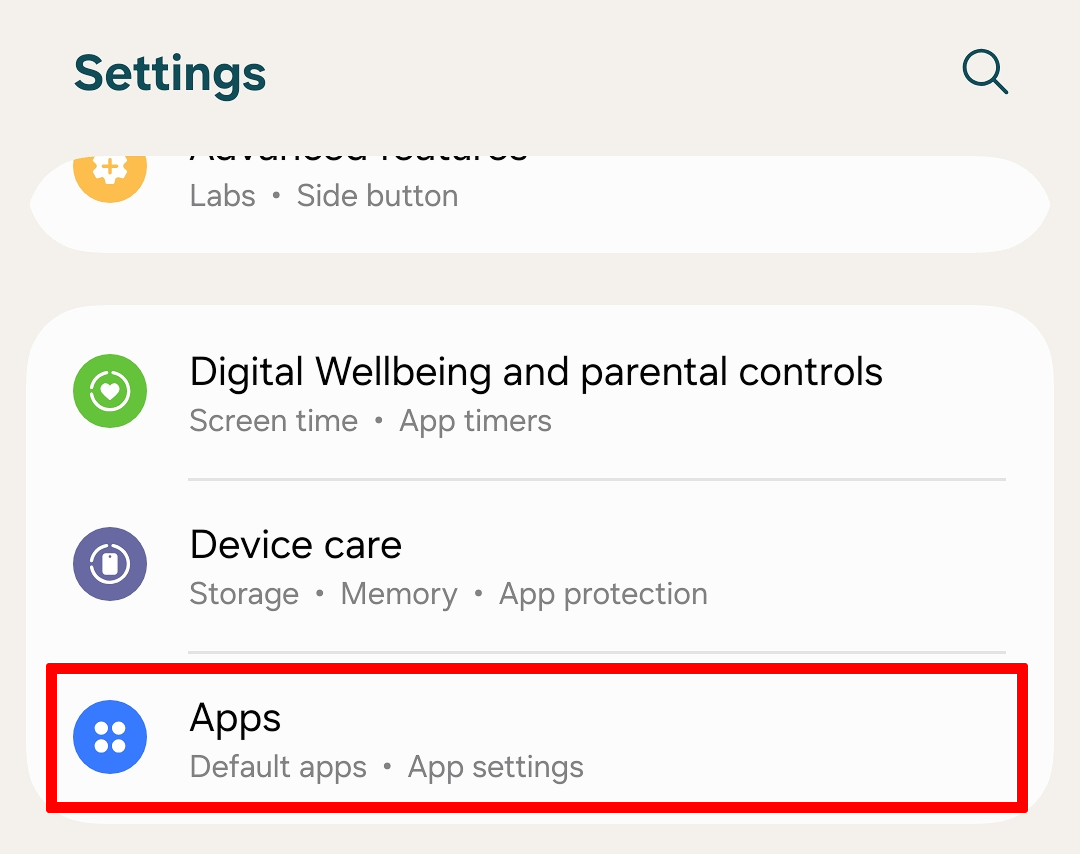
Step 3: Select Chrome
Search for and select the Chrome app.
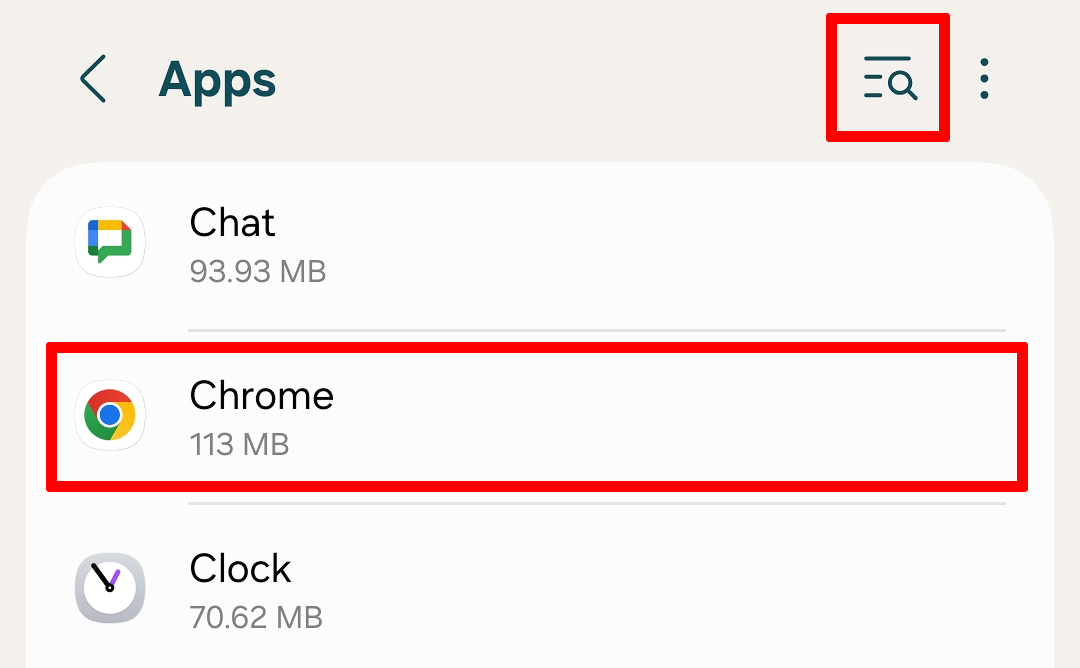
Step 4: Tap Permissions
Tap Permissions.
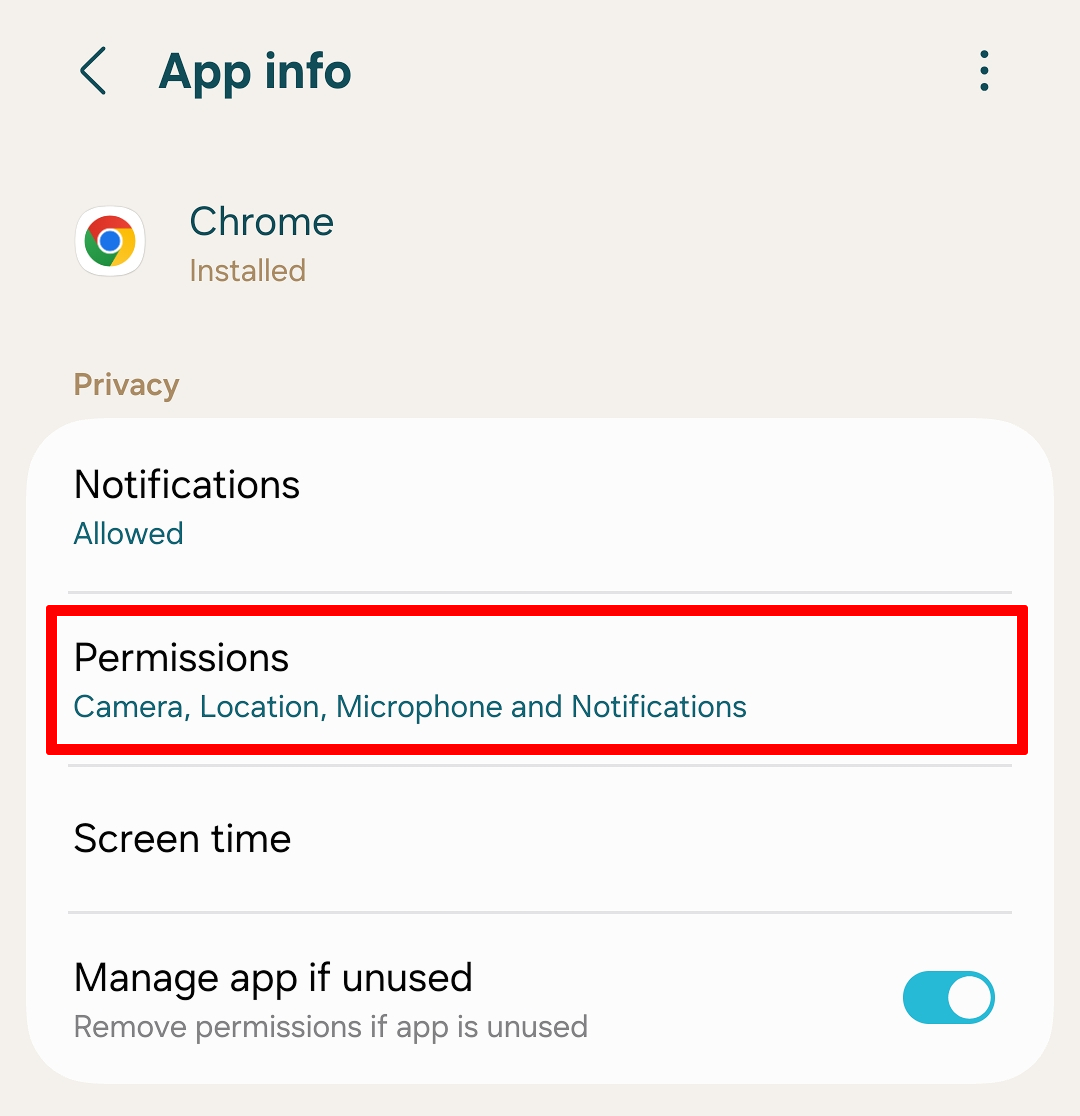
Step 5: Allow camera and microphone
Set Camera to Allow only while using the app. Do the same for Microphone.
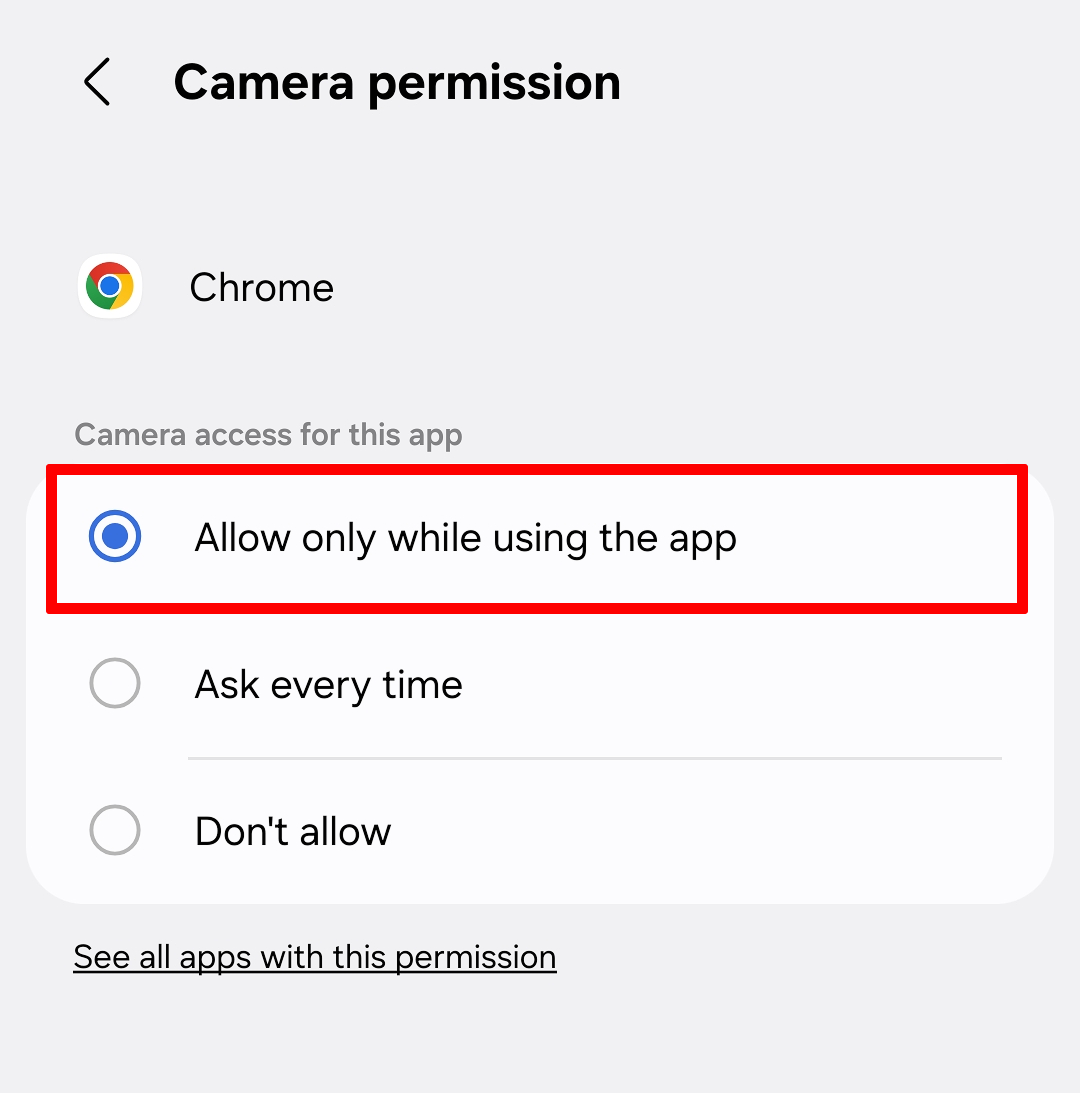
Step 6: Restart Chrome
Close and reopen Chrome, then log in or rejoin the waiting room.
Frequently asked questions
Why does Blitzz need my camera and microphone?
Blitzz video calls use your camera and mic so the agent can see and hear you during the session.
I blocked the camera by mistake. How do I fix it?
Tap the Tune icon in the Chrome address bar, open Permissions, tap Reset permission, then reload the call link and tap Allow.
Do I need to install an app?
No. Blitzz runs in Chrome. If you still have trouble, you can use the Blitzz ShowMe app instead (see below).