
Safari asks for camera and microphone access each time you start a new Blitzz call. If you blocked access, follow these steps to turn it back on.
How to re-enable the camera and mic in Safari on a MacBook or iMac
- Open Safari.
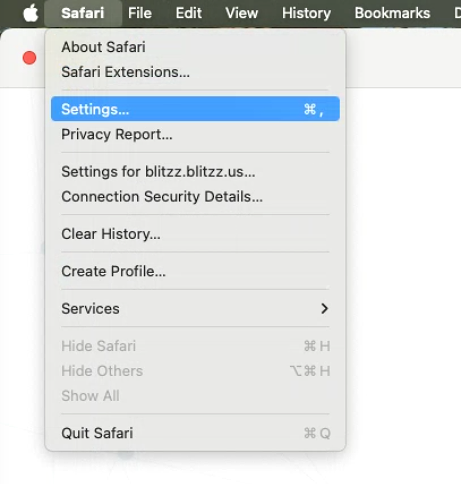
- In the menu bar, click Safari > Settings.
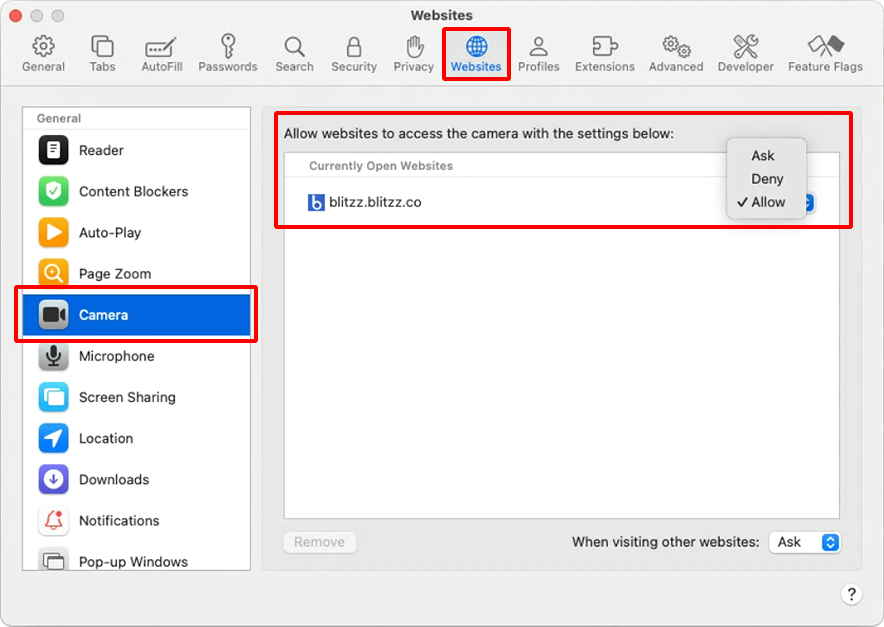
- Open the Websites tab.
- In the left list, select Camera.
- Find the Blitzz website on the right and set it to Allow. Do the same under Microphone.
- Restart Safari.
Frequently asked questions
Why does Safari ask for camera access on every call?
Safari asks each time you start a new call unless the site is set to Allow in Safari Settings.
Can't share your screen on the latest macOS?
See how to fix screen sharing on macOS.