
If Chrome is blocking your camera or microphone on a computer, follow these steps to turn them back on before your Blitzz call.
How to re-enable a blocked camera or mic in Chrome
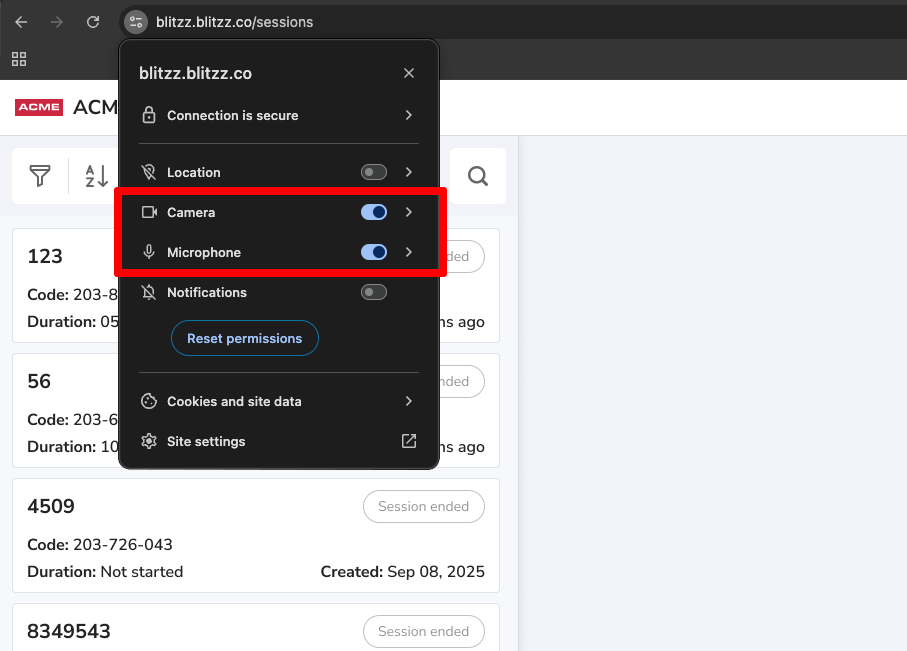
- Click the Tune icon in the address bar.
- Find Camera and Microphone in the menu.
- Turn both toggles On.
- Refresh the tab (Ctrl + R on Windows, Cmd + R on Mac).
Still blocked? Reset Chrome site permissions
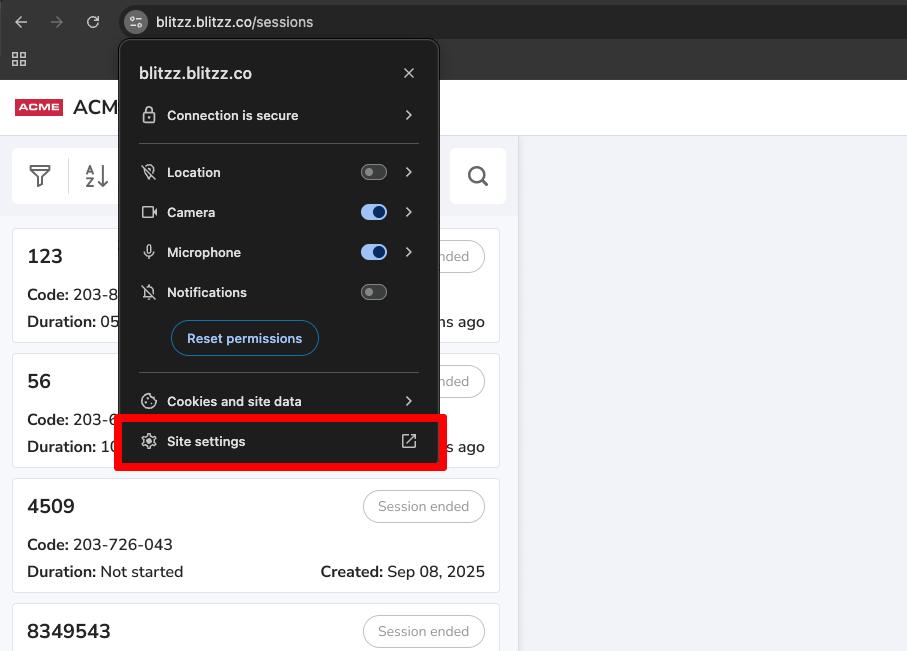
- Click the Tune icon in the address bar.
- Click Site settings.
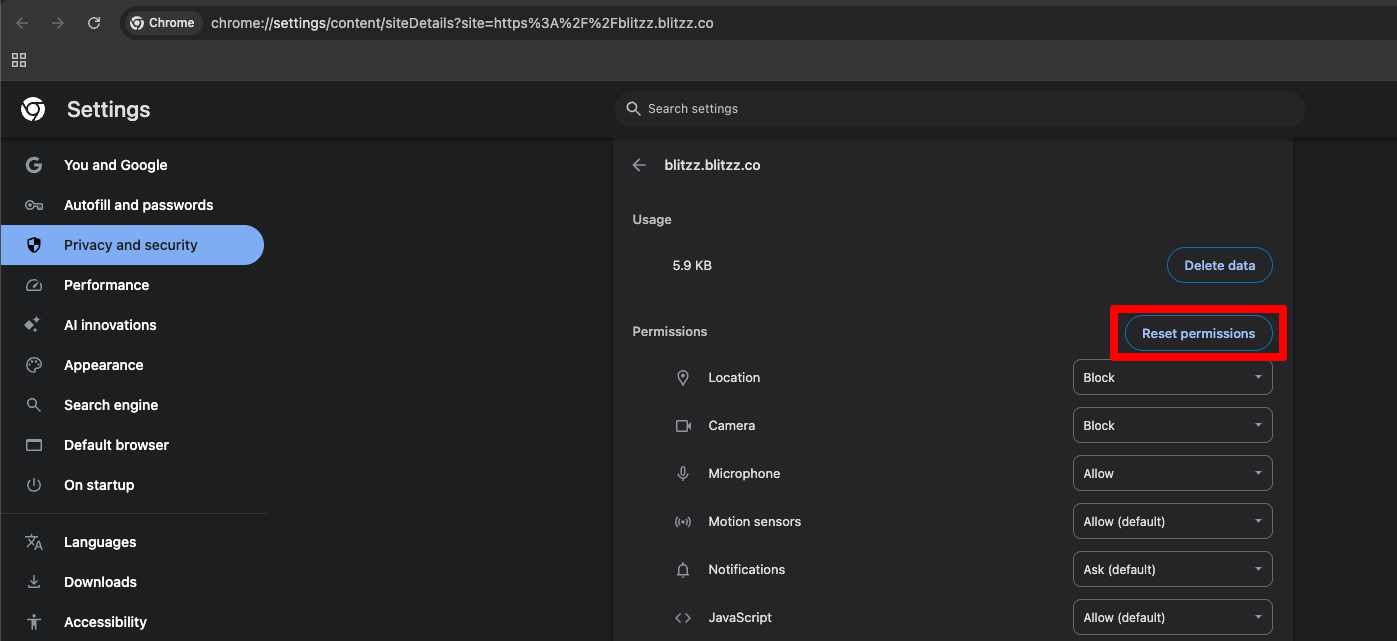
- Click Reset permissions, then refresh the tab and allow camera and mic access when prompted.
Frequently asked questions
Why is my camera blocked in Chrome?
Chrome blocks the camera and mic for a site if you clicked Block when it asked for permission. Use the steps above to allow it again.
Where is the Tune icon?
It sits at the left end of the Chrome address bar, next to the website address.