
If your camera or microphone does not work on a Windows 10 computer, work through these fixes in order.
1. Allow camera and mic access in Windows settings
- Open the Start menu and click Settings (or press Windows + I).
- Go to Privacy.
- In the left sidebar, select Camera, then Microphone.
- Turn on Allow access to the camera on this device and Allow apps to access your camera. Do the same for the microphone.
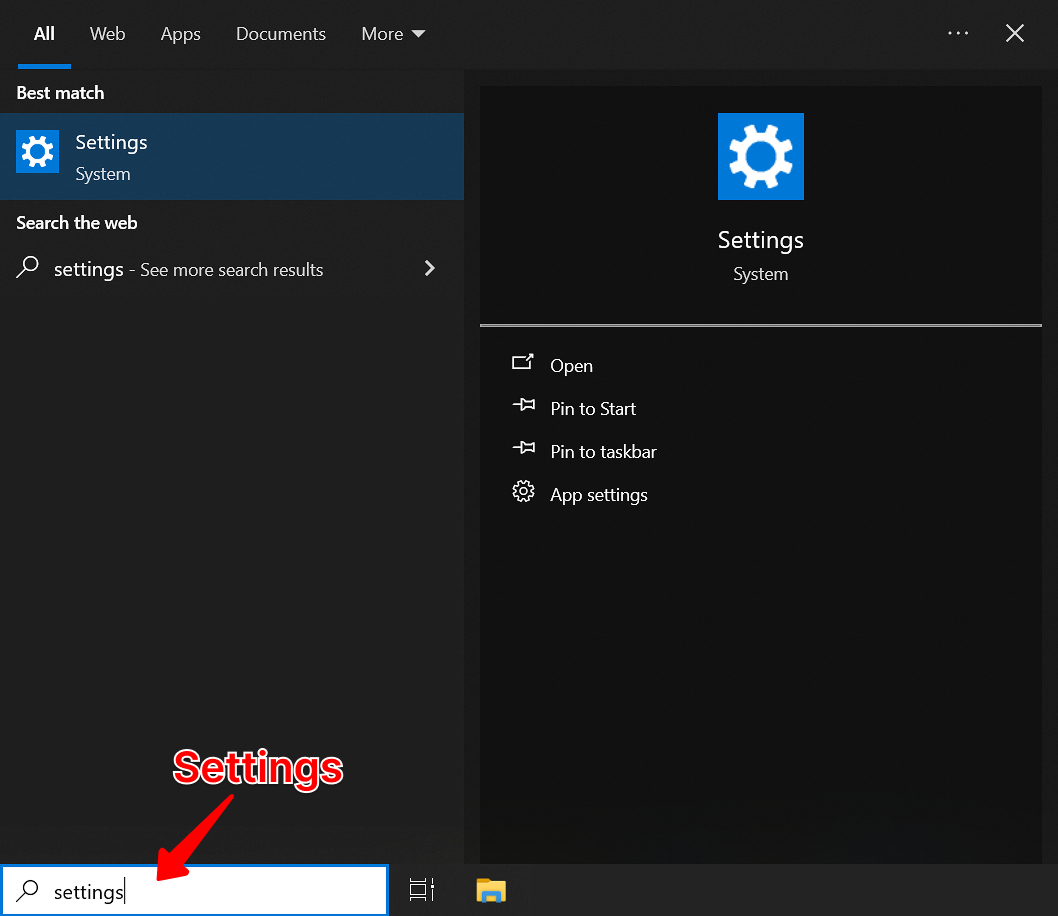
2. Select the right camera or mic in Chrome
Many Windows devices have more than one camera or microphone, and Chrome may not pick the right one.
- Open Chrome.
- Click the three dots (⋮) in the top right corner.
- Select Settings.
- Search for Site settings and open it.
- Select Camera or Microphone.
- Choose a device from the menu. Try each option until one works.
3. Install Windows updates
- Open Start > Settings (or press Windows + I).
- Go to Update & Security.
- Select Windows Update.
- Click Check for updates.
- Restart your computer if prompted.
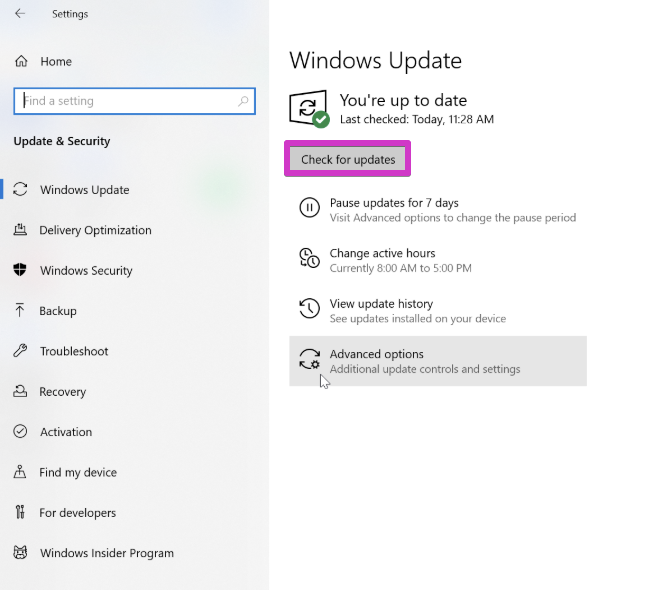
This makes sure Windows has the latest camera and microphone drivers for your browser.
4. Using a Lenovo device? Check Lenovo Vantage
- Open the Start menu and search for Lenovo Vantage.
- Go to Device > Display.
- Make sure the camera and mic are turned on.
When you're done, test your camera and mic in your browser to confirm everything works.
Frequently asked questions
Why is the wrong camera showing in my Blitzz call?
Your computer may have more than one camera. Choose the right one in Chrome under Settings > Site settings > Camera.