
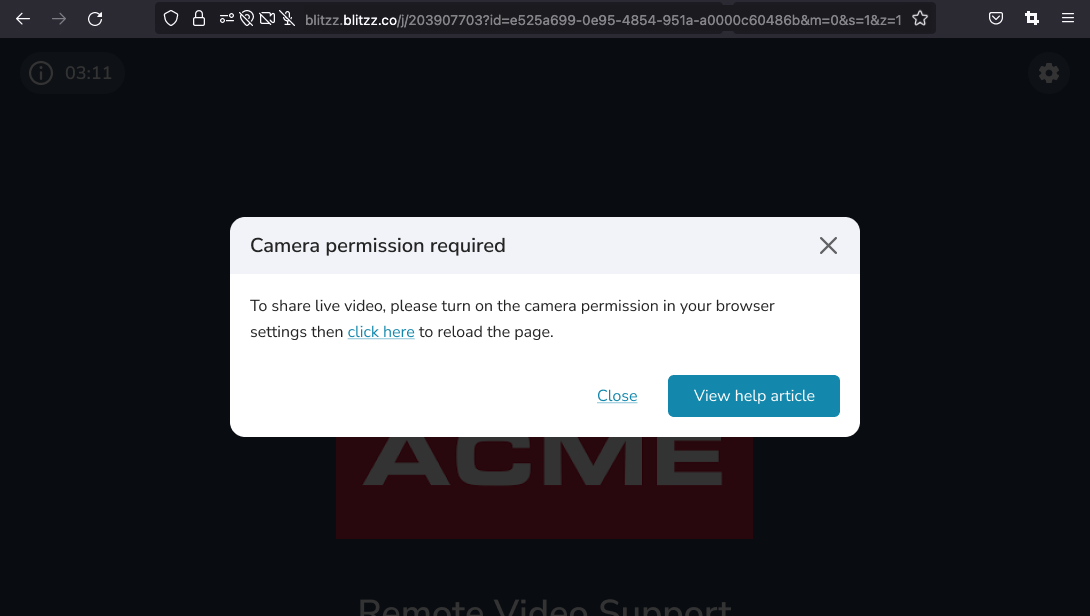
If Firefox is blocking your camera or microphone on a computer, follow these steps to turn them back on before your Blitzz call.
How to re-enable a blocked camera or mic in Firefox
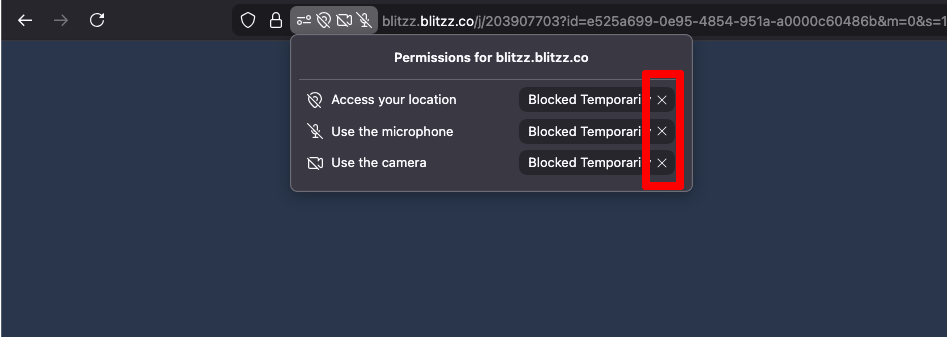
- Click the Tune icon on the left side of the address bar.
- Find the camera and microphone permissions. Click the X next to any entry marked Blocked Temporarily.
- Refresh the tab and allow access when prompted.
Frequently asked questions
What does "Blocked Temporarily" mean in Firefox?
Firefox is blocking the camera or mic for this site. Clear the entry with the X, then refresh the page.