
This guide shows how to allow camera and microphone access in Microsoft Edge on an iPhone or iPad so you can join a Blitzz session.
Allow camera and mic when you join a session
When you join a Blitzz session in Edge, it asks for permission to use your camera and microphone. Tap Allow.
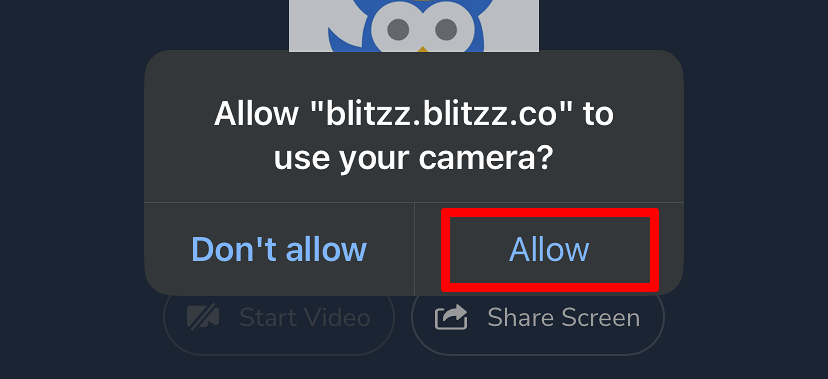
If you declined by mistake, the camera or mic stays blocked. Follow the steps below to turn it back on.
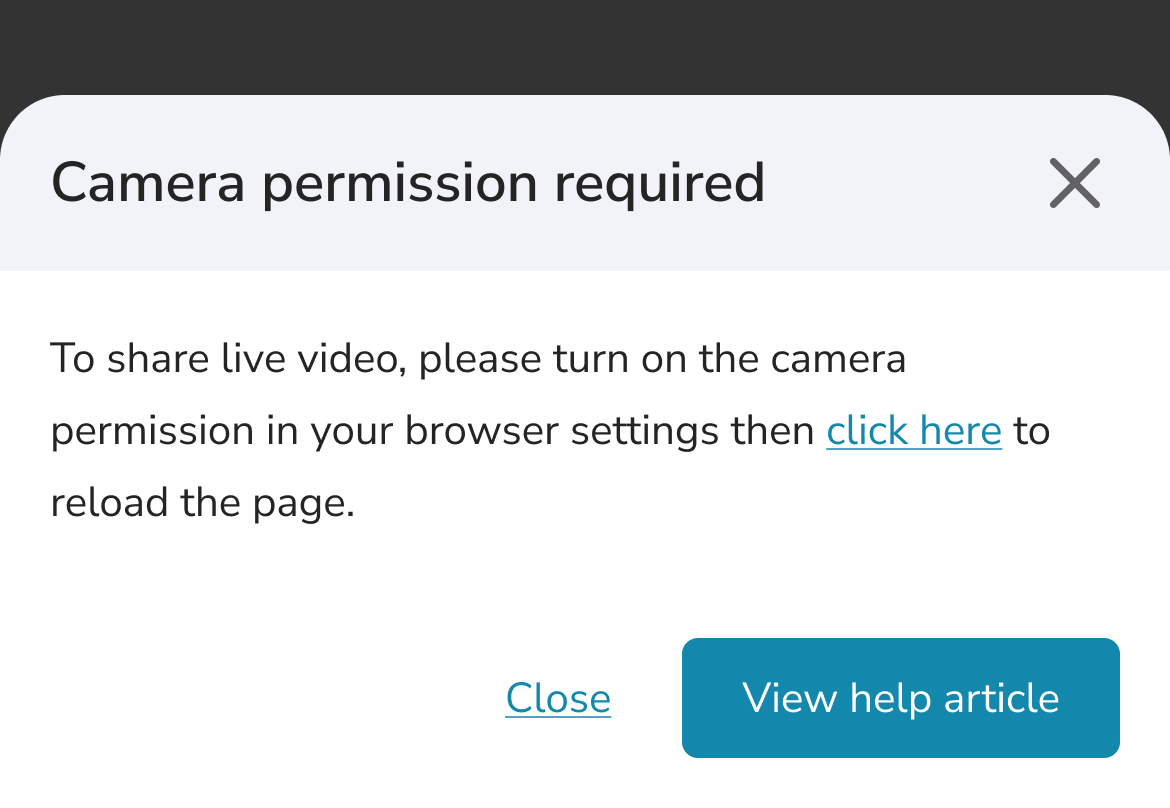
How to re-enable a blocked camera or mic
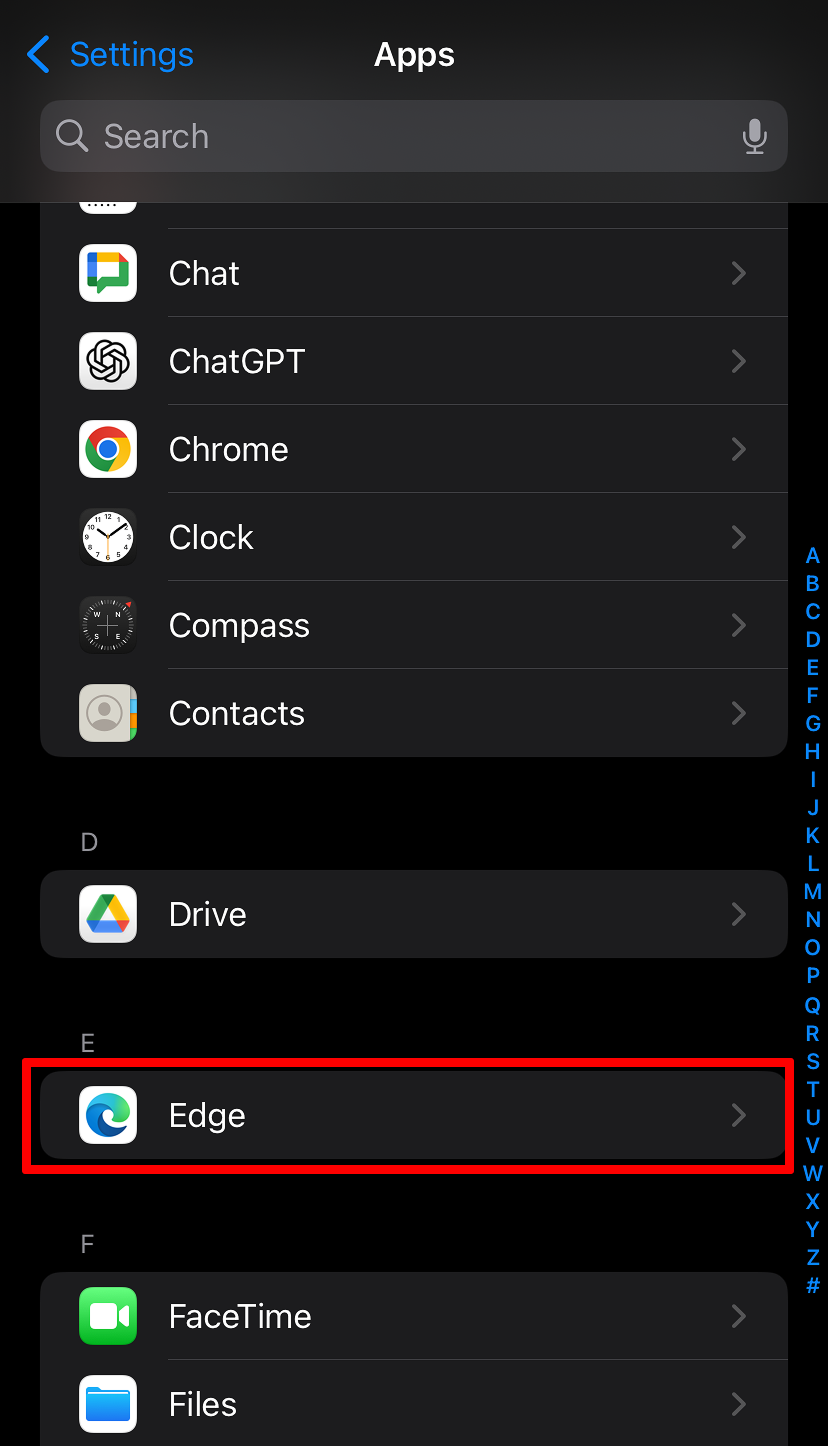
Step 1: Open Edge settings
Open the Settings app, scroll down and tap Edge.
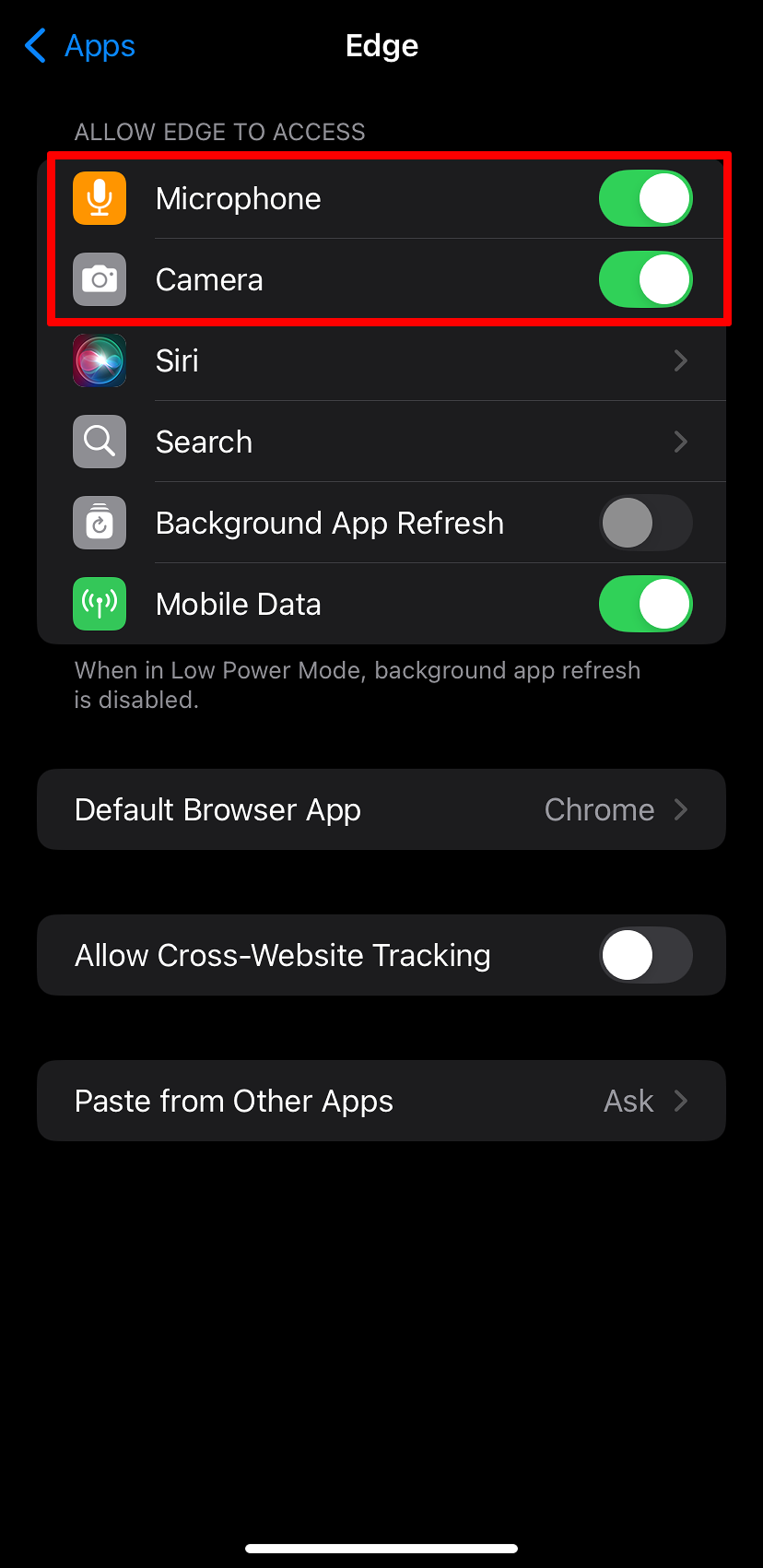
Step 2: Turn on camera and microphone
Turn both Camera and Microphone on.
Step 3: Rejoin the session
Open Edge and go to your invite link. When prompted, tap Allow.
Frequently asked questions
Why can't Blitzz use my camera in Edge on iPhone?
Camera or microphone access is turned off for Edge in iOS Settings. Turn both on and reopen the link.