
Async File Upload lets guests upload photos and files from their computer or phone, with or without a live video session. Guests can share useful information without a live call.
Step 1: Set up the Collaboration Profile
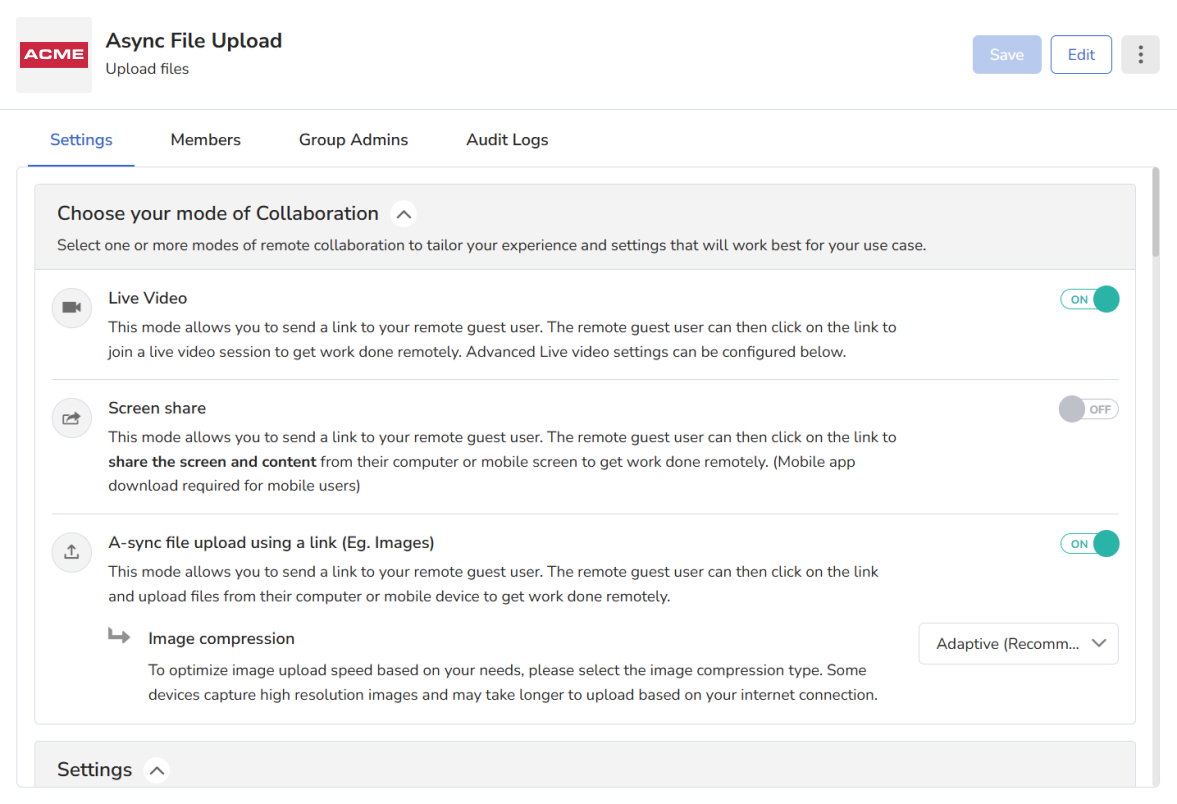
Collaboration Profiles (previously called Call Experience) is where you choose the session mode. You can pick one or more modes: Live Video, Screen Share and Async File Upload.
- Select Async File Upload as a collaboration mode, alone or with other modes.
- Add Members so they can choose this Collaboration Profile.
Step 2: Start the session
Start a session as usual: select the Collaboration Profile and send the invite. When the guest opens the link, they see this screen:
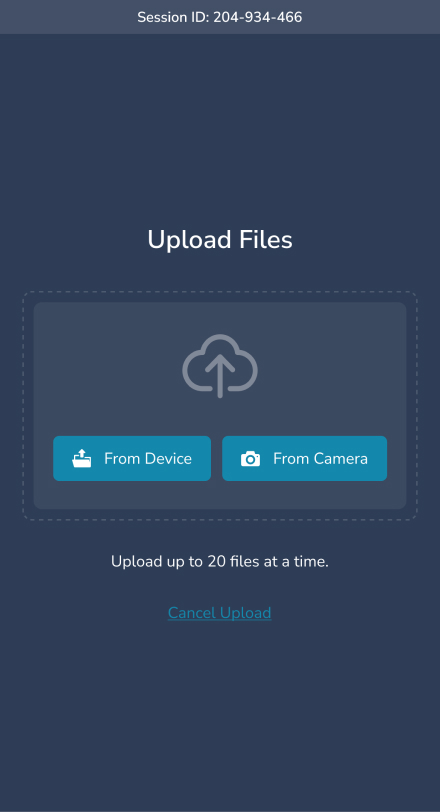
The guest can upload files from their device or take new photos with the camera.
Markup and captions
Mark up photos
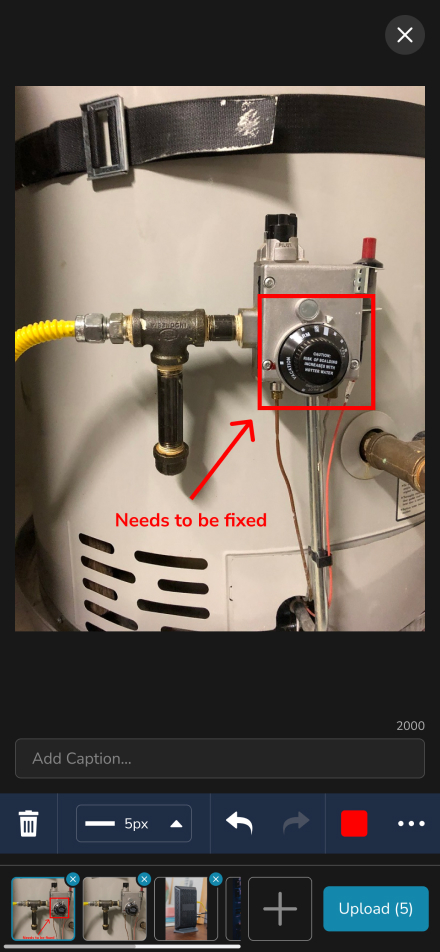
Guests can use the familiar Markup tools on each photo uploaded from their device. After selecting photos, a preview appears at the bottom. Pick a photo and mark it up before uploading.
Add a caption
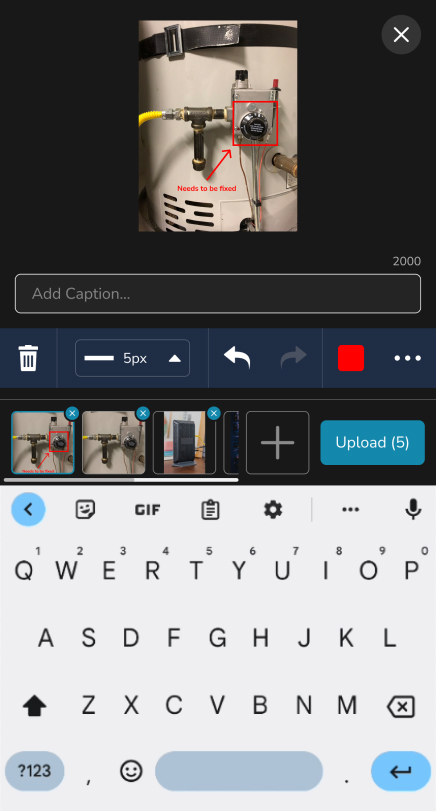
Guests can add a caption to each photo. It appears with the standard date and time stamp and the optional location stamp.
Frequently asked questions
Do guests need a live video call to upload photos?
No. With Async File Upload, guests can upload with or without a live session.