
Bookmarks let you add a label to a photo with one click. Each photo gets a timestamp and the bookmark label. List every item that needs to be captured to create a guided workflow.
Common uses
- Guided workflows: List all the items to capture. The agent works down the list and clicks each label to take the photo. The label appears on the image.
- Training: Help new and existing users capture every required item during an inspection.
- Standard labels: Reuse common labels for photos taken on service calls.
Set up Bookmarks in Collaboration Profiles
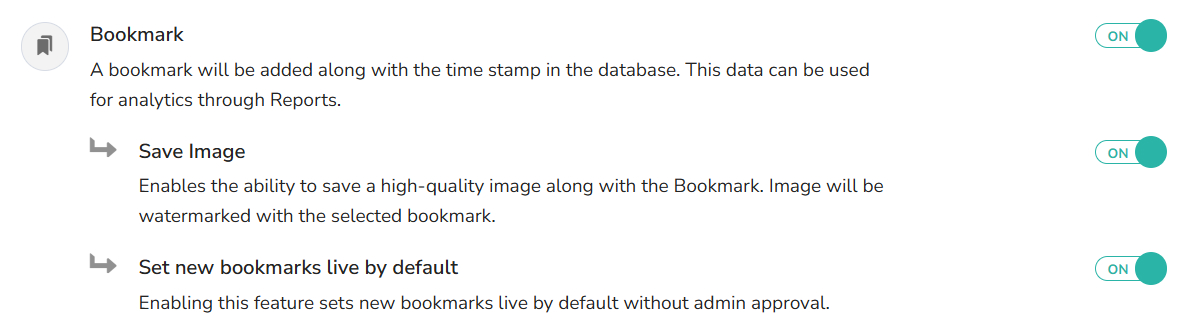
Create and use Bookmarks
Agents can create bookmarks during a session and use them right away. Admins can also create bookmarks for the whole domain in Blitzz Settings.
During a Blitzz session
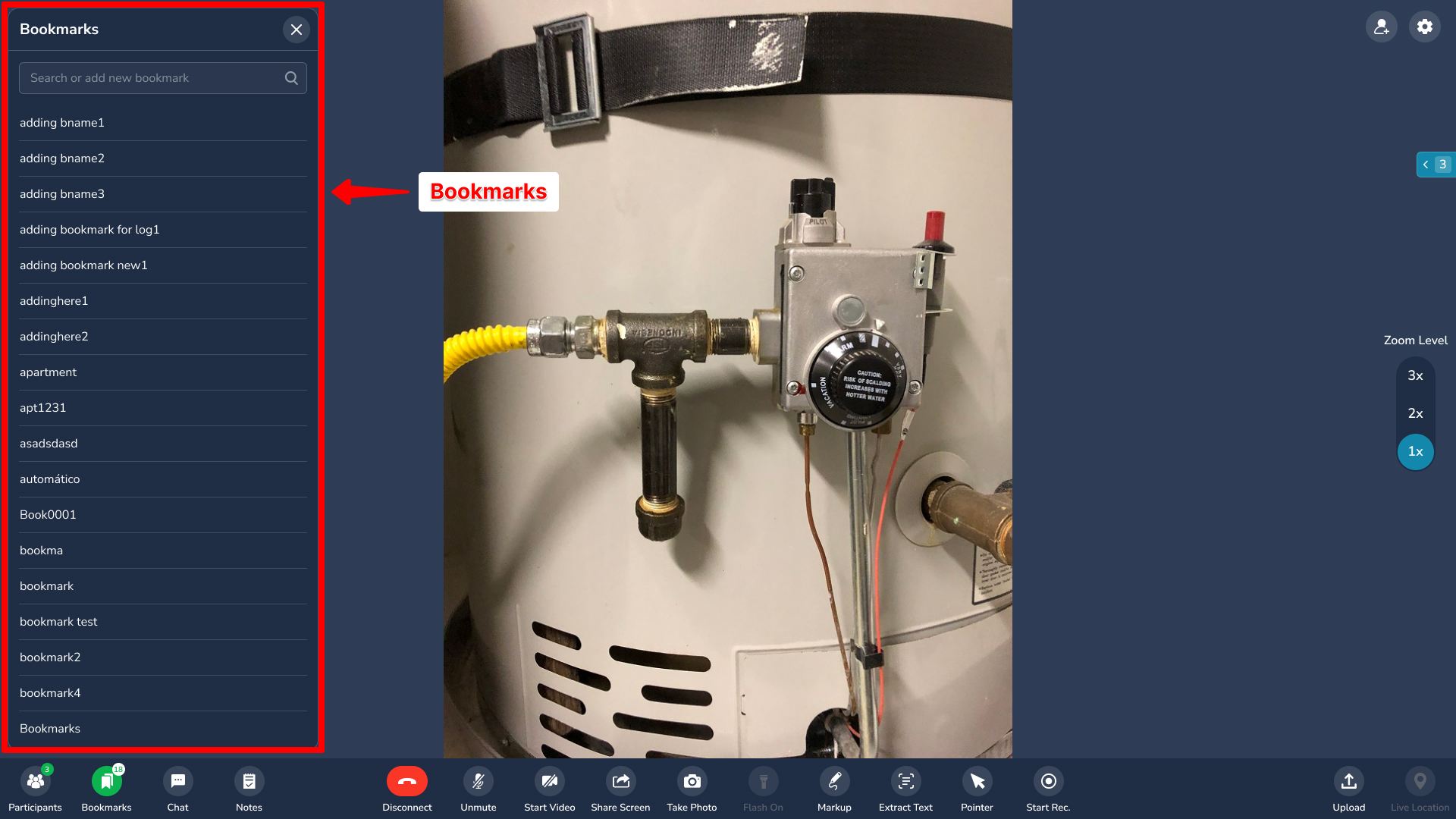
- Tap Bookmarks. A panel on the left shows existing bookmarks.
- Click a label to take a photo with that tag. A counter shows how many photos use each label.
- No matching label? Type a new one in the Bookmark box. It appears in the list. Click it to save the photo with the new tag.
In Blitzz Settings (admins only)
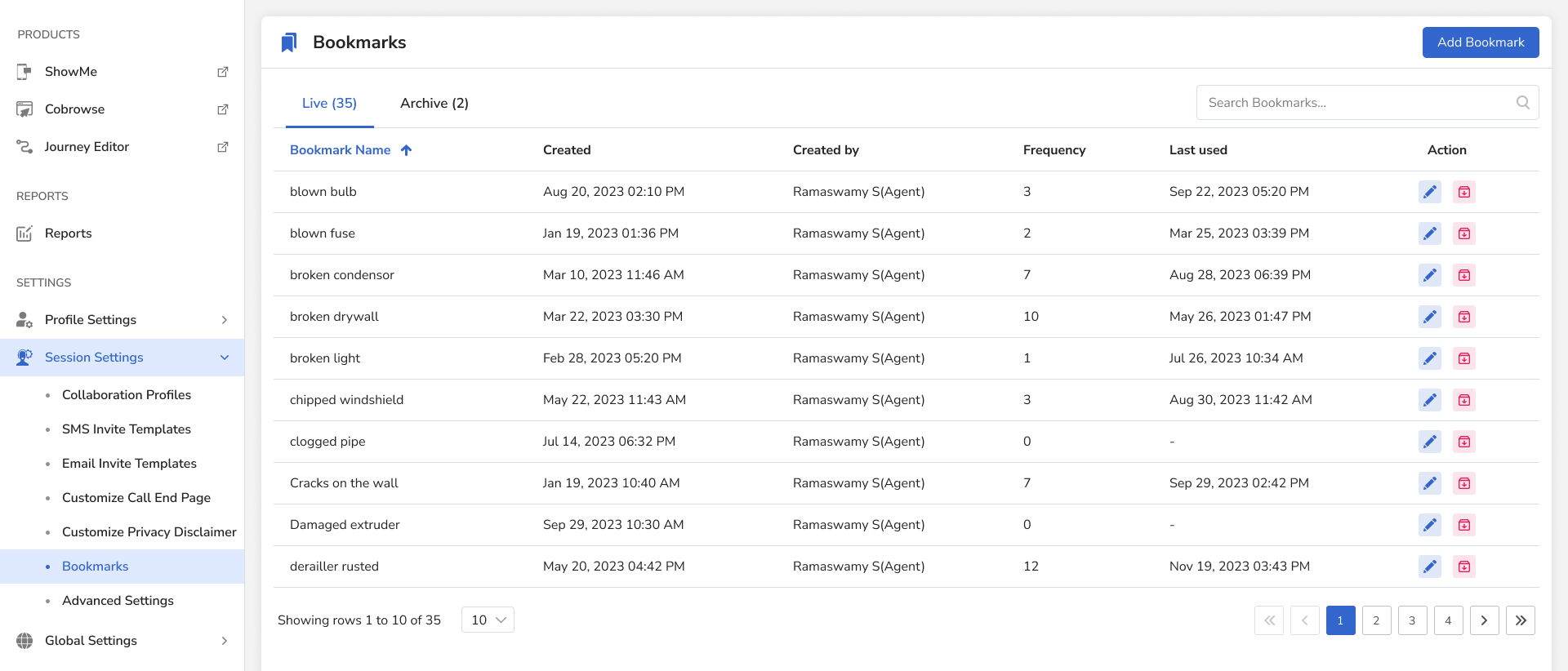
- View all Live or Archived bookmarks.
- Sort by Bookmark Name, Created (date), Created By, Frequency (times used) or Last Used.
- Edit bookmark names, search with the Search box, or archive bookmarks.
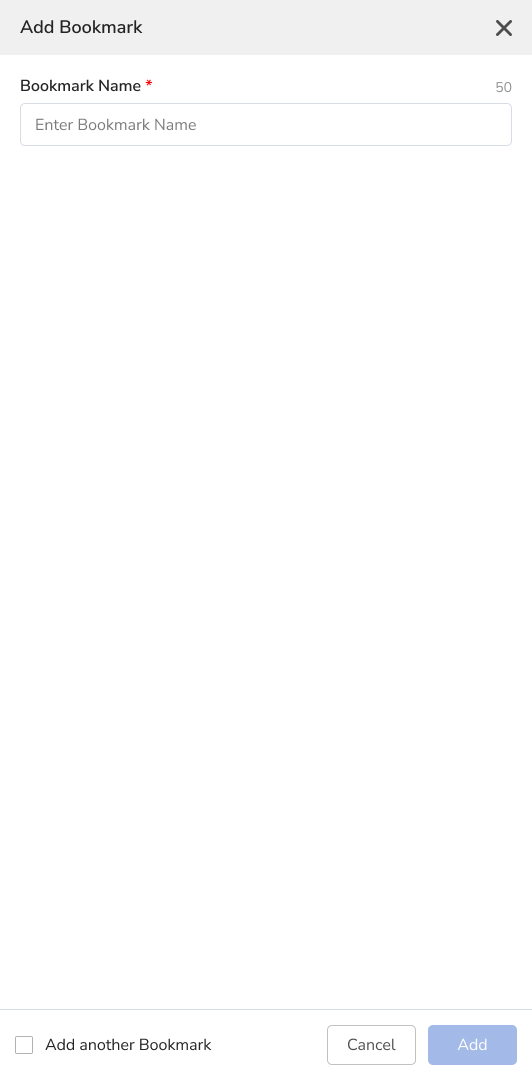
- Click Add Bookmark to create a new one using this screen:
Frequently asked questions
Can agents create bookmarks during a call?
Yes. Type a new label in the Bookmark box and click it to use it right away.
Who can manage domain bookmarks?
Only admins, from Blitzz Settings.