
Live chat lets everyone on a Blitzz video call send text messages and links. Messages are visible to everyone on the call.
How to turn on chat
- Log in as an Admin and click Session Settings in the left sidebar.
- Click Collaboration Profiles.
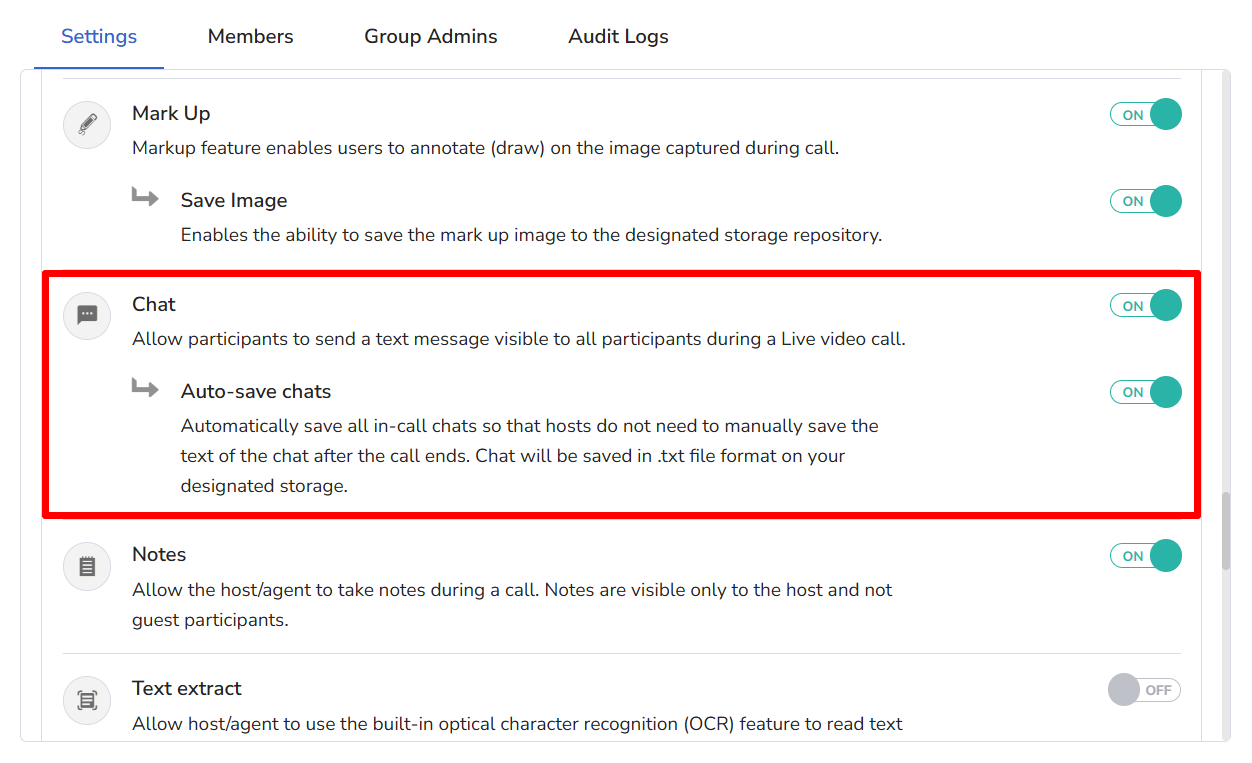
- Select a Collaboration Profile. On the Settings tab, turn on Chat. To keep chat messages after the call, also turn on Auto-save Chats.
- Click Save.
How to send a chat message
You can only send messages during a video call.
On desktop
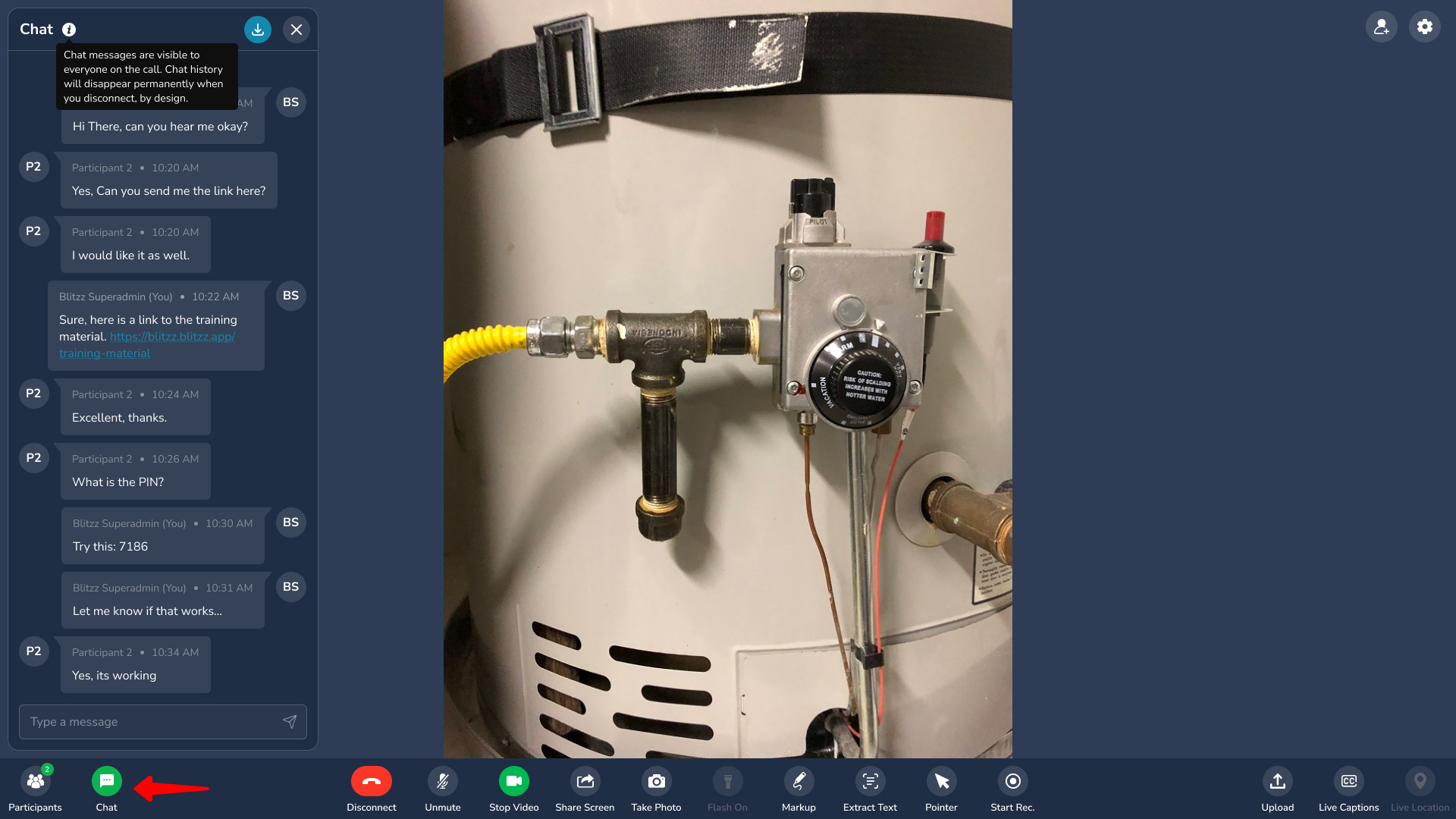
- Click the Chat button in the bottom menu bar.
- Type your message and press Enter. You can also paste links for the guest to open on their device.
- The chat window stays open until you click the Chat button again. Reopen it any time to see all messages from the session.
On mobile
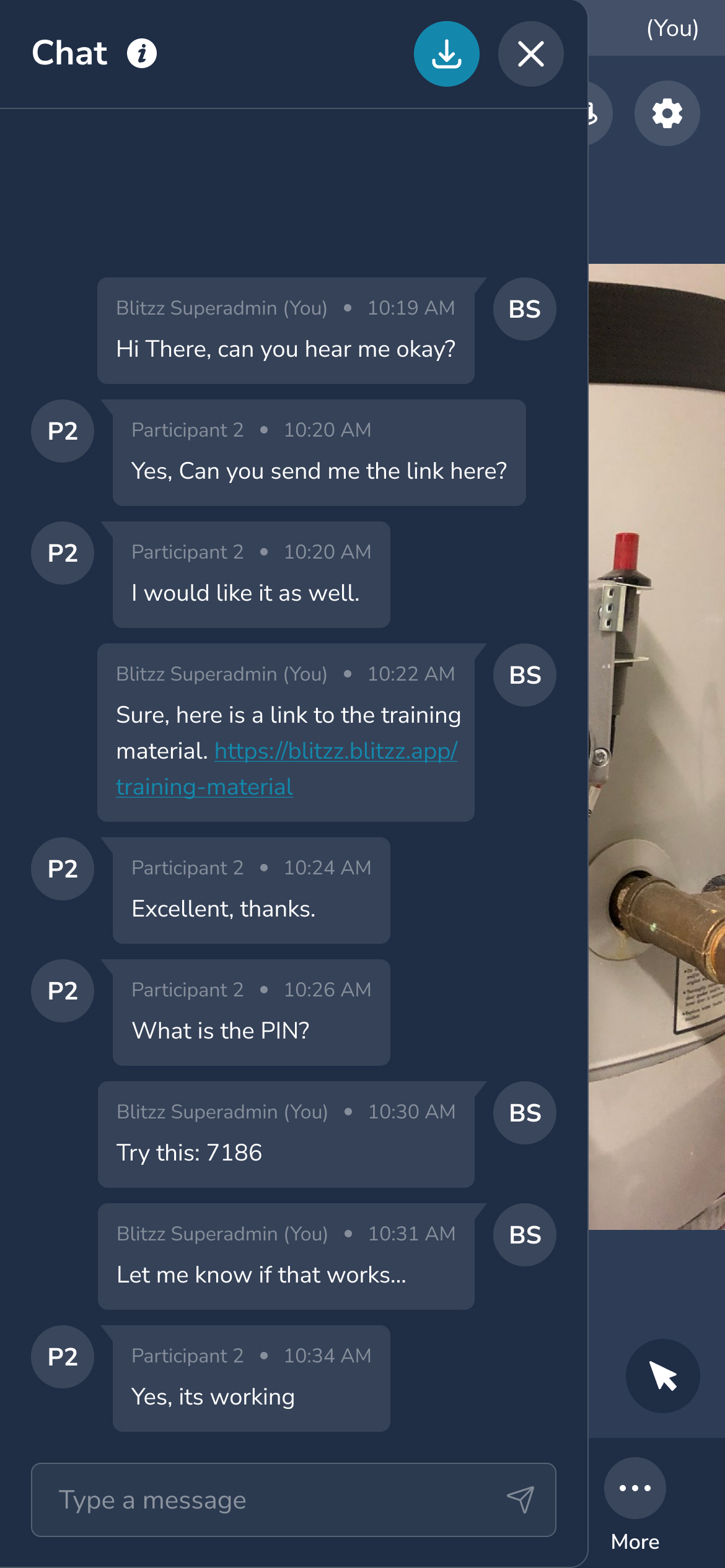
- Tap the Chat button in the top right corner.
- Type your message and tap the arrow (send) button.
- Close the chat with the X or by tapping outside it. Tap Chat again to see all messages from the session.
View saved chat messages
Messages are saved only if Auto-save Chats is on in the Collaboration Profile. After the call, find them in Session Details on the Files tab.
Good to know
- Without auto-save, chat is not saved or stored and disappears permanently when you disconnect, by design.
- Chat messages are visible to everyone on the call.
- Chat is available to all users in the domain.
Frequently asked questions
Are Blitzz chat messages saved?
Only if Auto-save Chats is on. Otherwise they disappear when the call ends.