
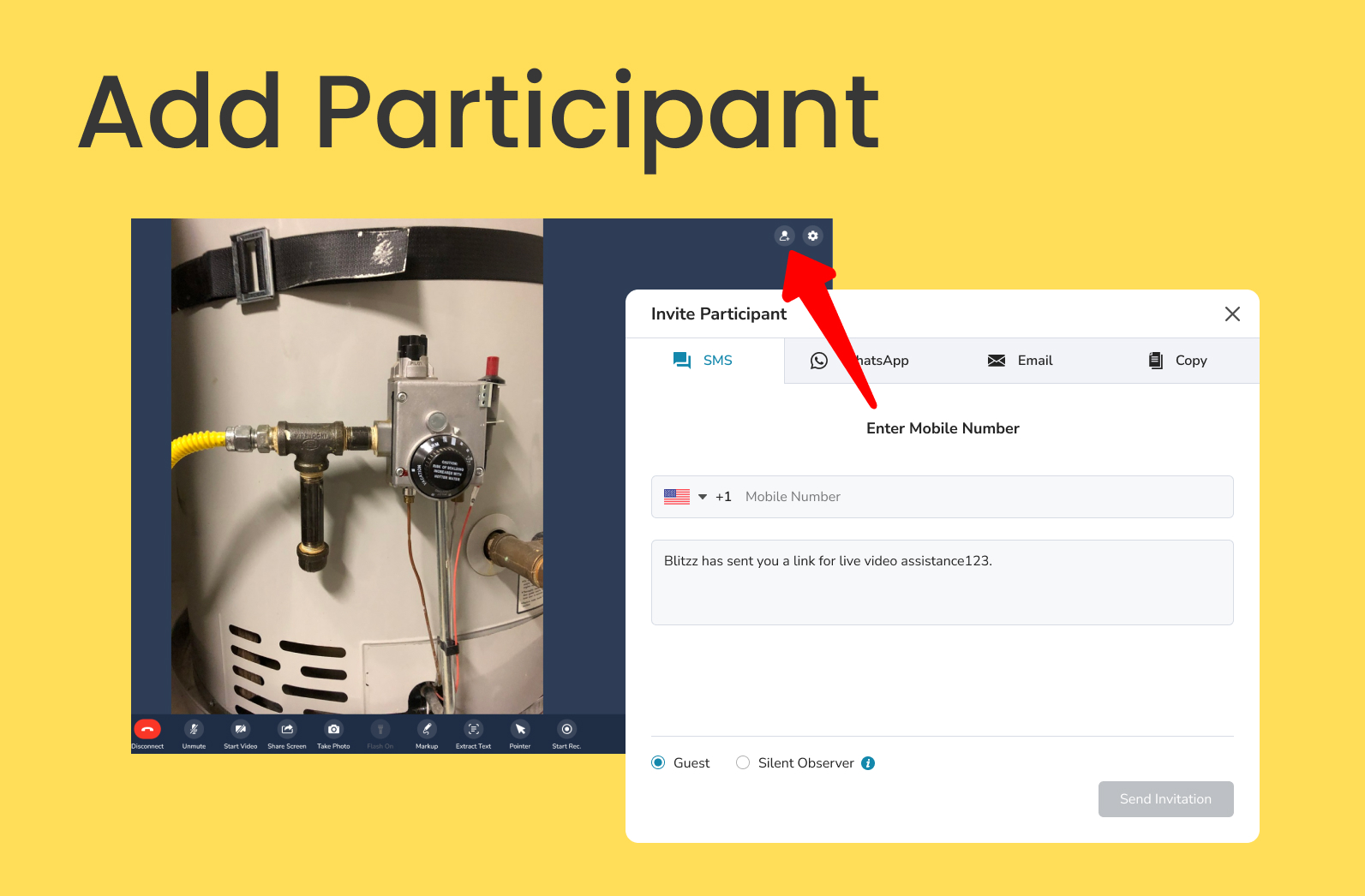
You can bring more people into a live call, like a senior technician or a homeowner joining a call with a contractor. Invite them as a Guest or a Silent Observer.
How to add a participant
- Start a session and join the call from desktop or mobile.
- If you are the host, click Add participant.

- Choose how to send the invite.
Invite options
SMS
Sends a text message with the invite.
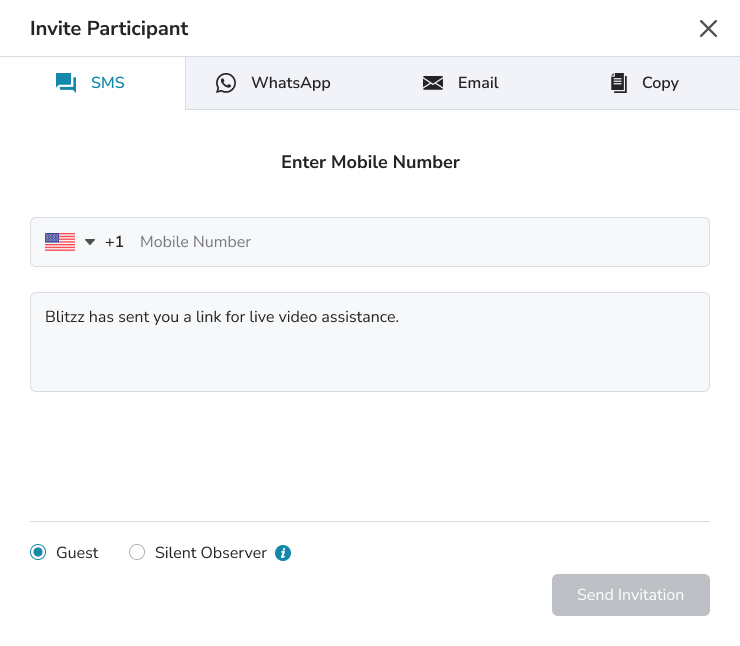
Sends a WhatsApp message with the invite.
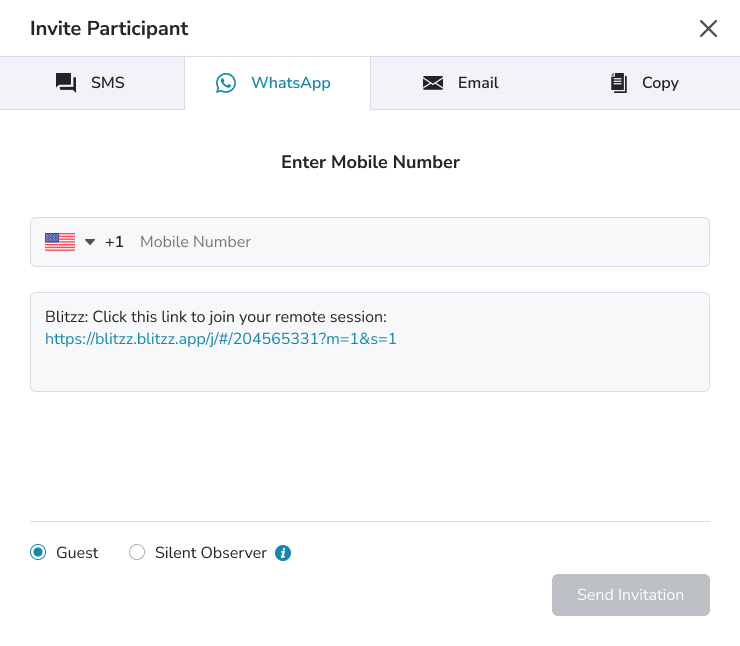
Opens your default email app on your computer or phone. Add the recipients and send.
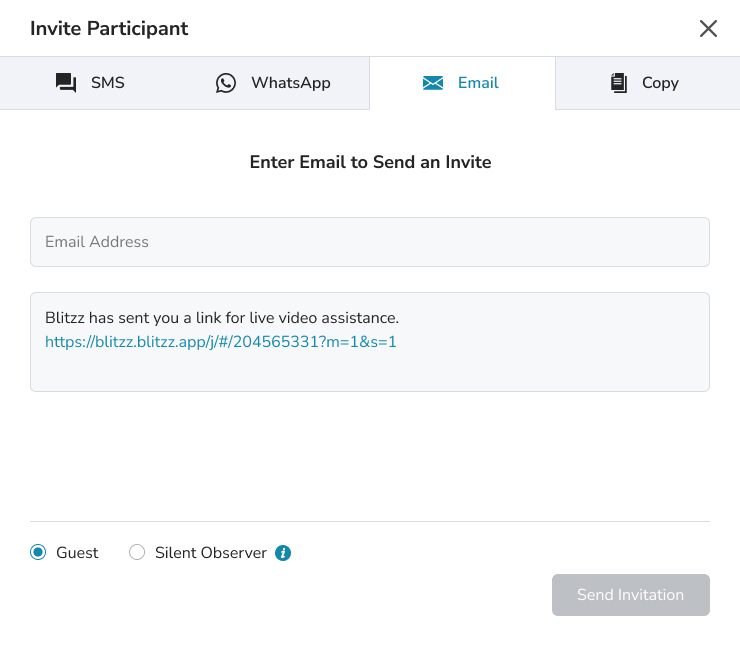
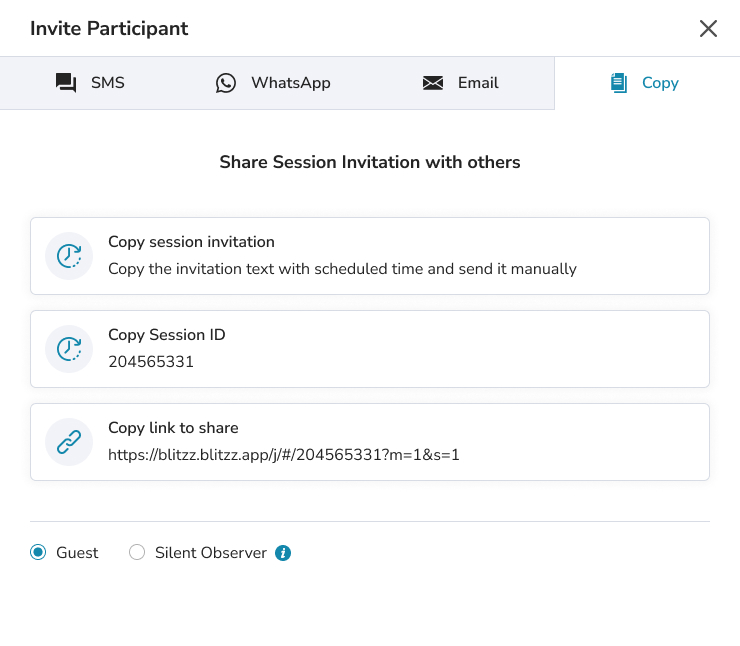
Copy Link
Choose one of the copy options:
- Copy session invitation: Send an invite for a scheduled time.
- Copy session code: For guests with the Blitzz mobile app, who can enter the code to join.
- Copy guest link: Share the link in a chat app like Slack or Microsoft Teams.
Frequently asked questions
Who can add participants during a call?
The host, using the Add participant button.