
Available to: Blitzz Inspect users on Pro and Enterprise plans
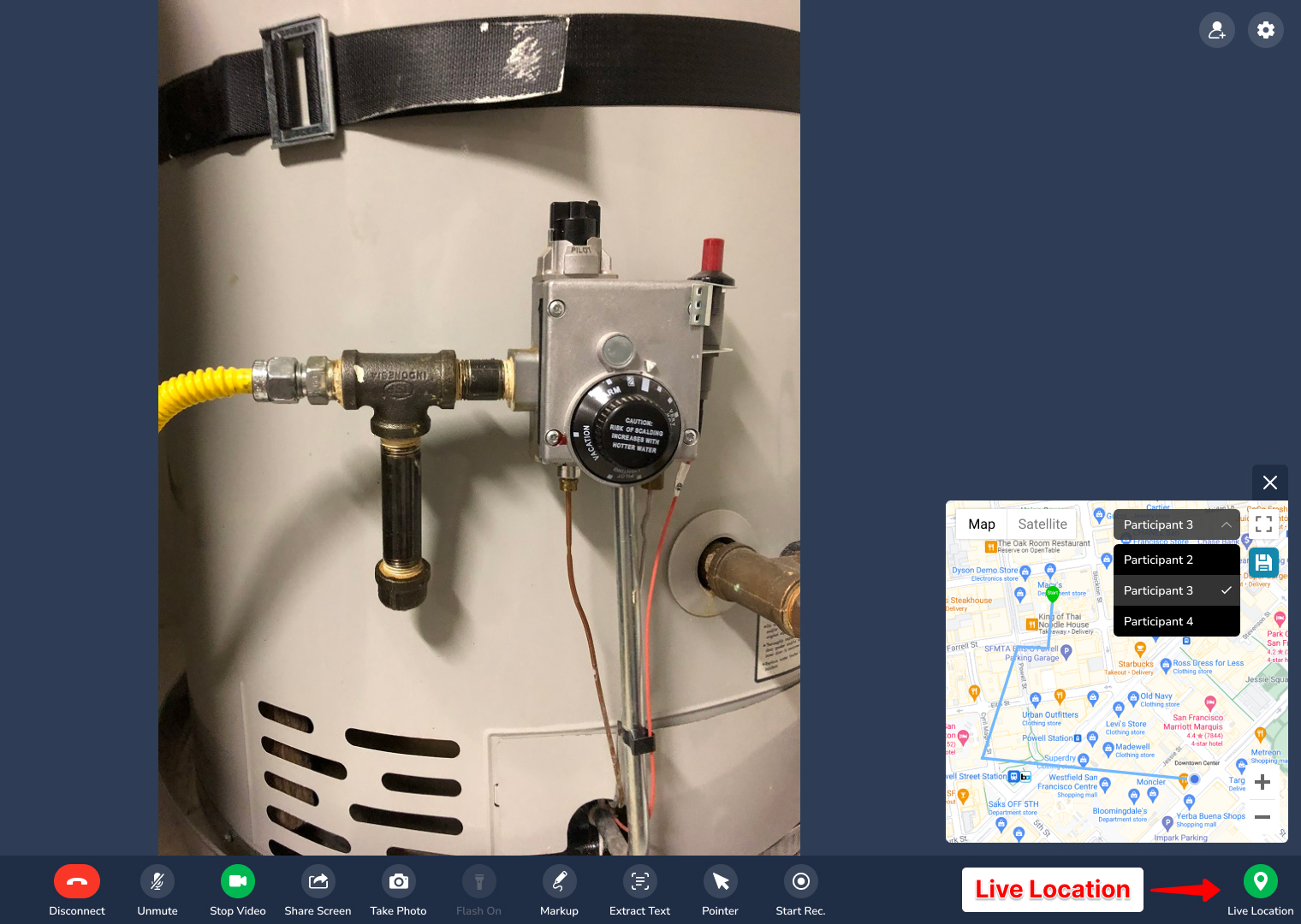
The Live Location Timeline shows where your participant may have been during a video call and the route they may have taken, based on GPS. If they move during an inspection, you can follow their approximate location.
Note: Accuracy depends on the device's GPS and is usually within a few meters. It is not 100% accurate (see Troubleshooting below).
How to view the live location map
- During a call, click the Live Location button.
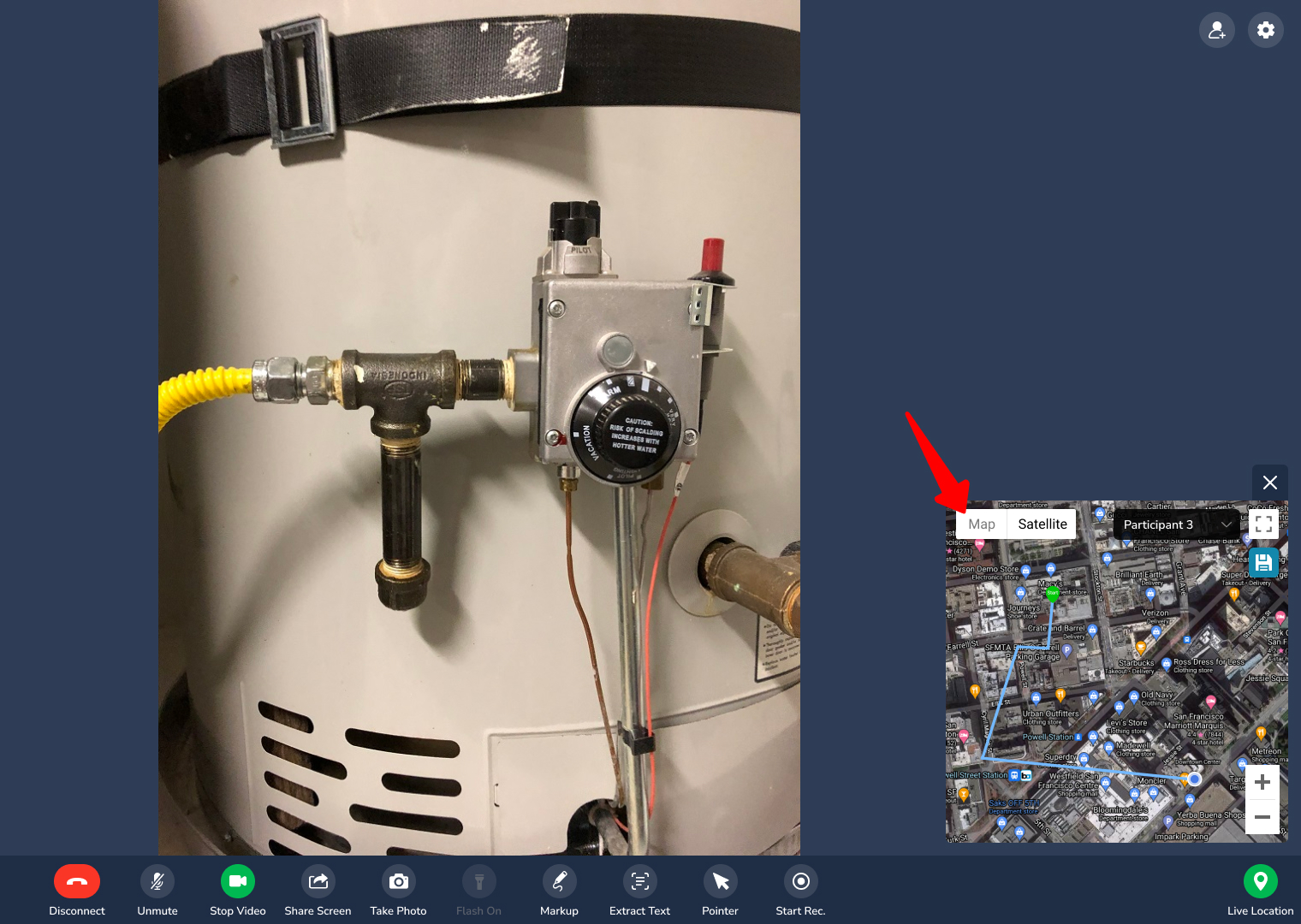
- Use Map and Satellite to switch map views.
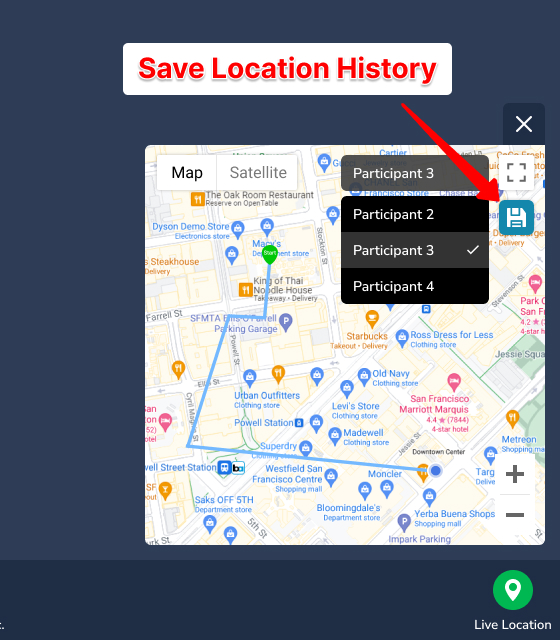
- Click Save Image to save the tracked location. It is not saved automatically.
On a mobile browser
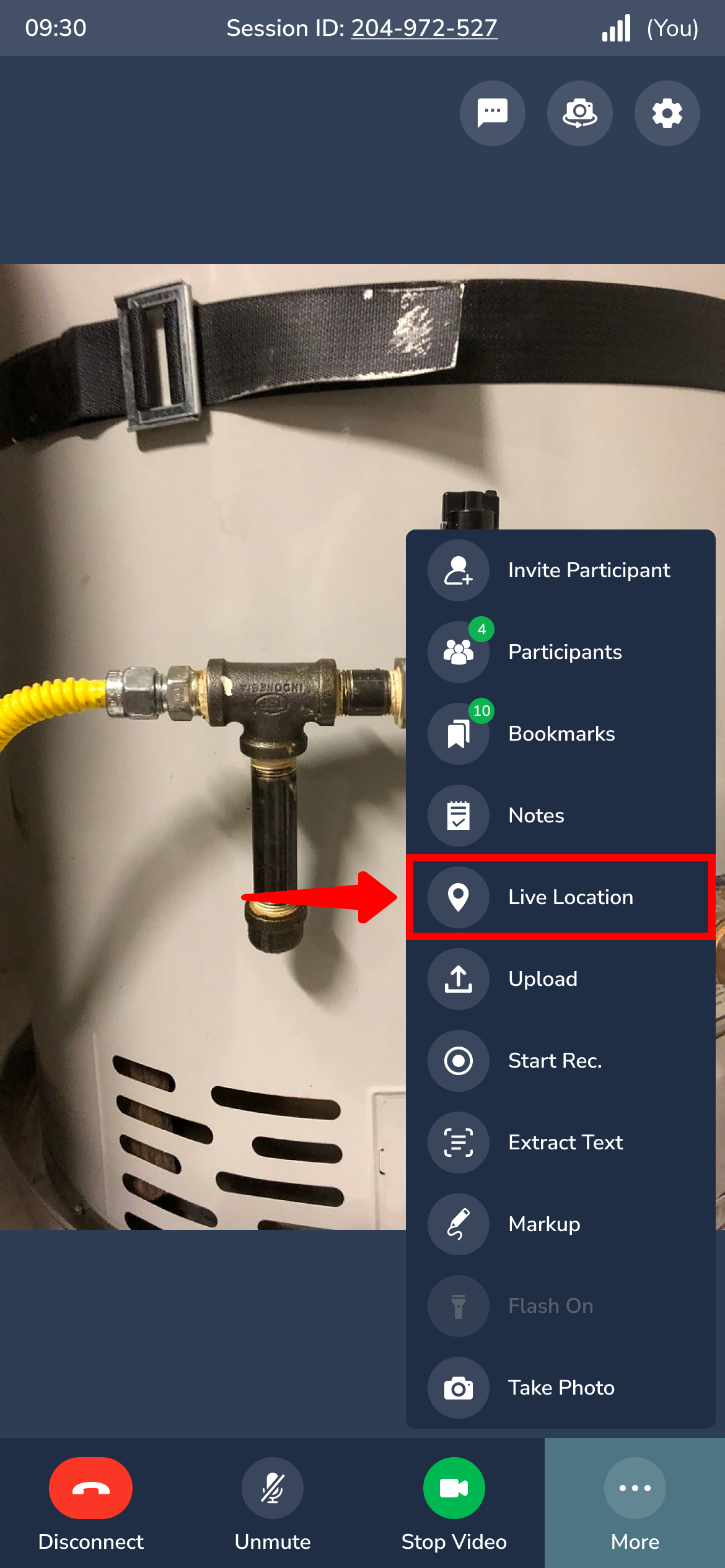
Agents and hosts can view the participant's live location by tapping More > Live Location.
Save the map with the path traveled
The live location map is not downloaded automatically. Save it manually whenever you want to capture the path traveled.
Troubleshooting
The Live Location button isn't visible
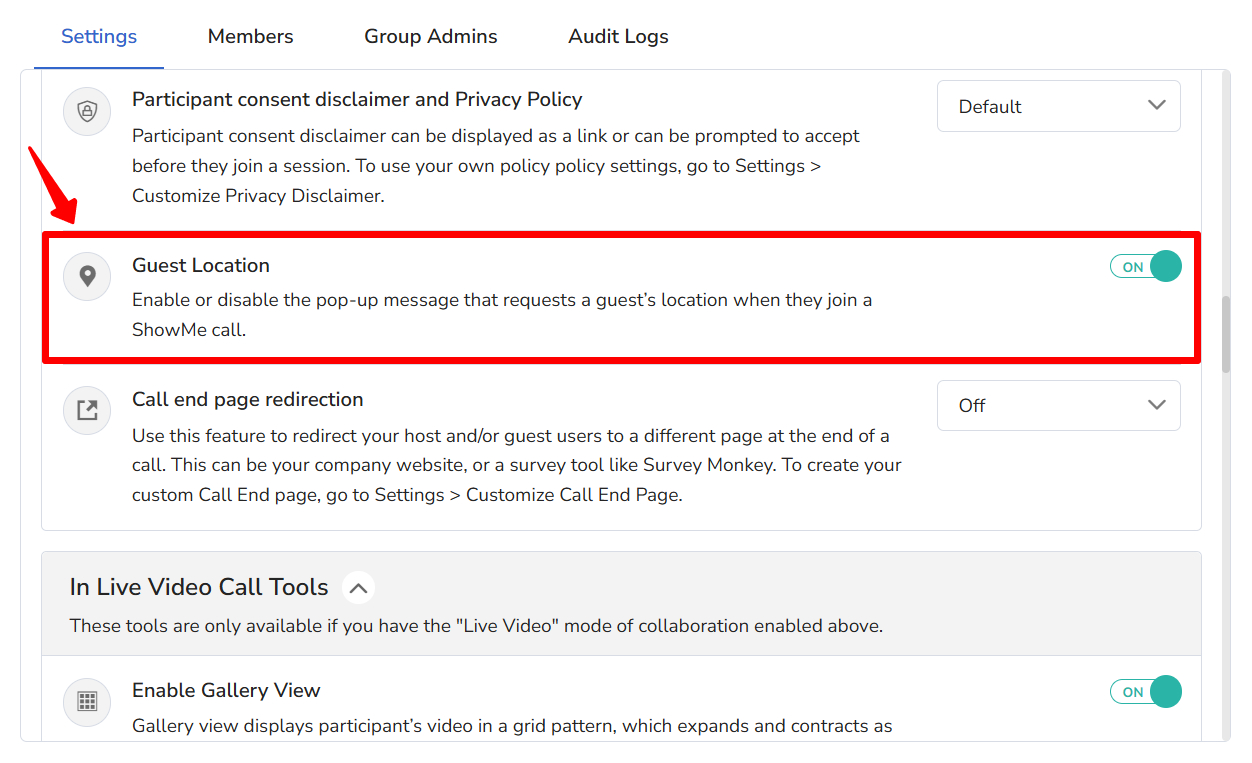
The Guest Location tracking feature must be on in your Collaboration Profile. Ask your domain admin to enable it and add you to that Collaboration Profile.
The Live Location button isn't clickable
The participant may not have shared their location, or their device can't get a GPS signal. Start a new call, or ask them to reset location services on their device.
The map moves even when the participant is still
The blue dot shows the participant's location. It can move slightly when the phone has weak or no GPS or an unstable internet connection, because location comes from cell towers and GPS satellites.
Frequently asked questions
Is live location saved automatically?
No. Click Save Image to keep a copy of the map and route.
Which plans include live location?
Blitzz Inspect Pro and Enterprise.