
Available on: Enterprise plans
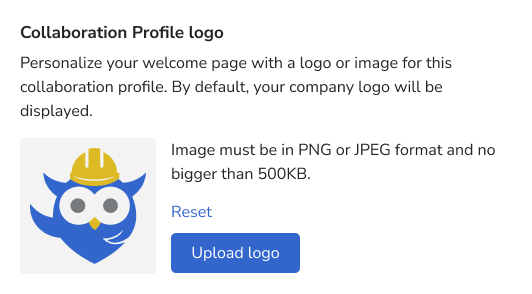
By default, every Collaboration Profile uses your company logo. If a use case needs a different logo during sessions, you can change it per profile.
How to set a profile logo
- Click the Settings icon in the main navigation bar.
- In the left menu, go to Collaboration Profiles.
- Select the profile to update.
- Next to the description, you'll see the current logo with a pencil icon. Click the pencil. You can also update the profile's name and description here.
- Click Upload logo and choose the new logo.
- Click Next.
Note: After clicking Next, enter your details and the reason for the change. This is recorded for audit purposes.
Frequently asked questions
Which logo does a Collaboration Profile use by default?
Your company (domain) logo.