
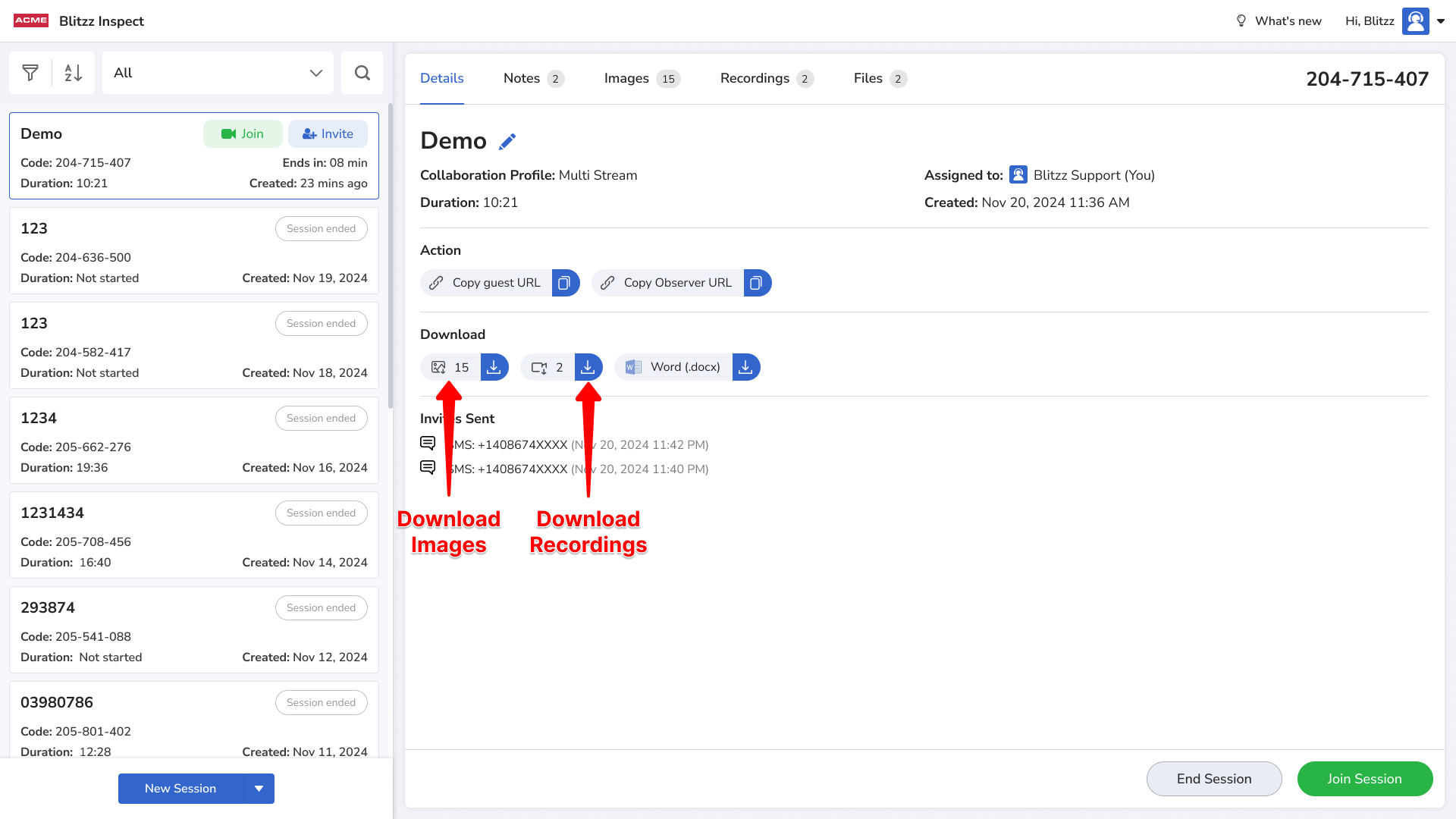
After a call, you can download images and recordings from Session History. Images download as a .zip file. Follow the steps for your device.
iPhone or iPad (Safari)
First, check your storage. Make sure you have enough free space. See how to check iPhone storage.
- Open Session History and tap the Download Images icon.
- Tap Download in the confirmation popup. A download icon appears in the top right corner.
- Tap that icon and select the downloaded file. The first time, you'll be asked to get the Files app, which you need to unzip the folder. Download the Files app.
Android phone or tablet (Chrome)
First, check your storage. Open the Settings app and tap Storage.
- Open Session History and tap the Download Images icon.
- Tap Continue in the confirmation popup to allow storage access. The files download to your Downloads folder.
- Swipe down from the top of the screen and tap the downloaded .zip file to open it. Some file apps require you to unzip it manually.
Windows or Mac (Chrome)
See Chrome's download instructions.
Frequently asked questions
Why can't I open my downloaded Blitzz images on iPhone?
Images download as a .zip file. Use the Files app to unzip and view them.