
This guide covers two microphone problems in Safari on iPhone and iPad: low or misrouted audio, and microphone access errors.
Low volume or audio from the wrong speaker
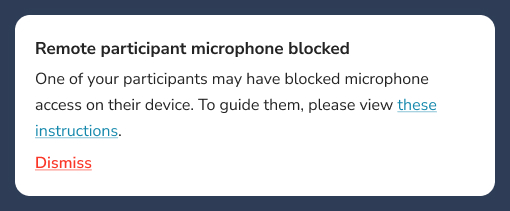
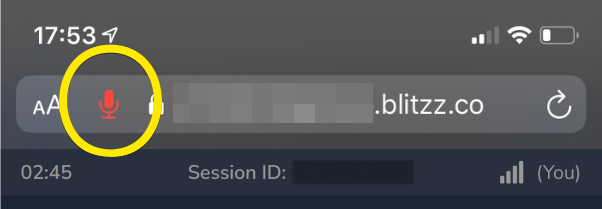
On iOS 13.0.1, Safari sometimes fails to send audio. If the volume is very low, or audio plays from the earpiece instead of the loudspeaker, tap the red microphone icon to switch the audio source. You may see a message like this:
This is a known Safari issue: WebKit bug 202405.
"Unable to access the microphone" error
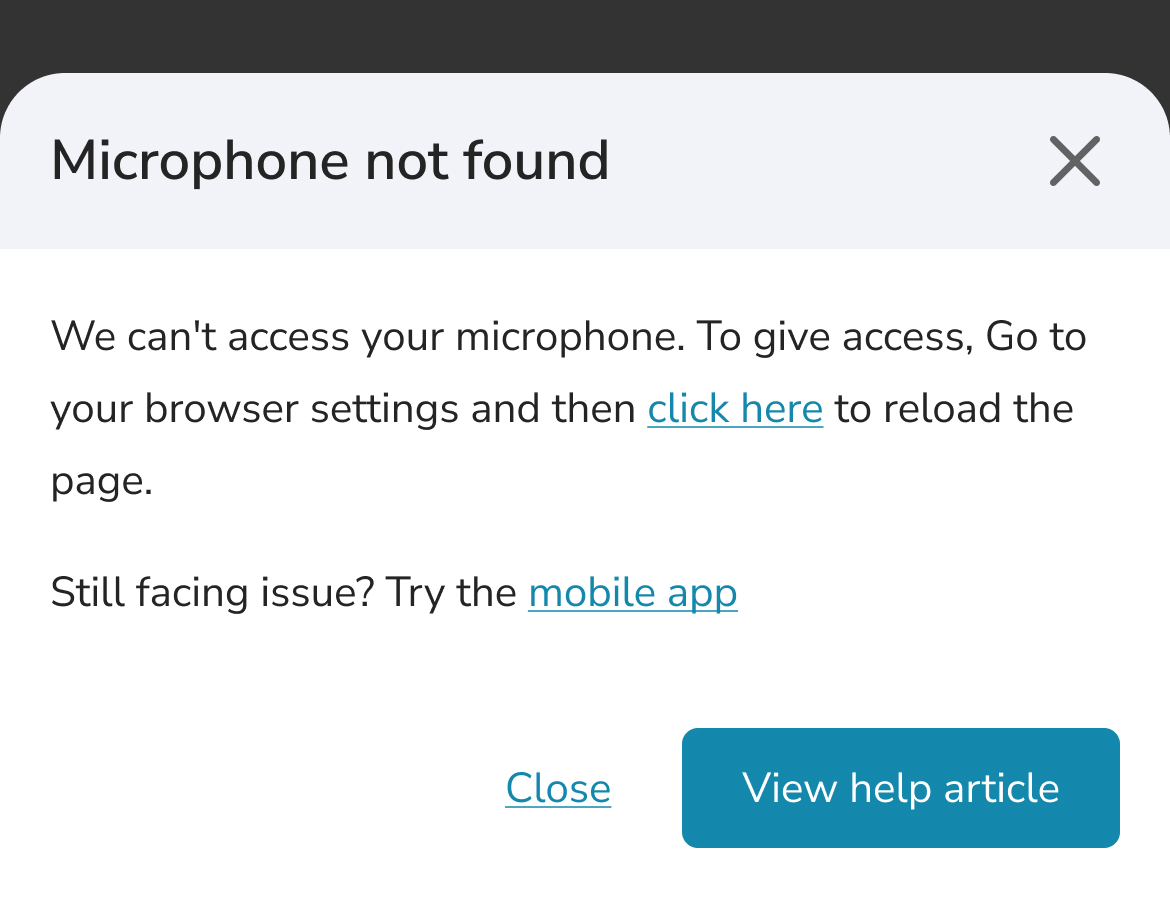
If you see a microphone error like the one below, microphone permission is most likely blocked.
Allow microphone access
- Go to Settings > Safari.
- At the bottom, open Camera and Microphone.
- Set both to Allow. Do the same for Location if your call needs it.
- Reload the page using the circular arrow in the address bar.
Reset Safari
- Go to Settings > Safari.
- Scroll down to the Clear History, Clear Cookies and Clear Cache buttons.
- Tap each one and confirm with Yes.
- Reload the page using the circular arrow in the address bar.
Frequently asked questions
Why does my audio come from the earpiece instead of the speaker?
This is a known Safari issue on iOS 13.0.1. Tap the red microphone icon to switch the audio source.