
Samsung Internet is the default browser on many Samsung Galaxy phones and tablets. This guide shows how to join a Blitzz video call in Samsung Internet and allow camera and microphone access.
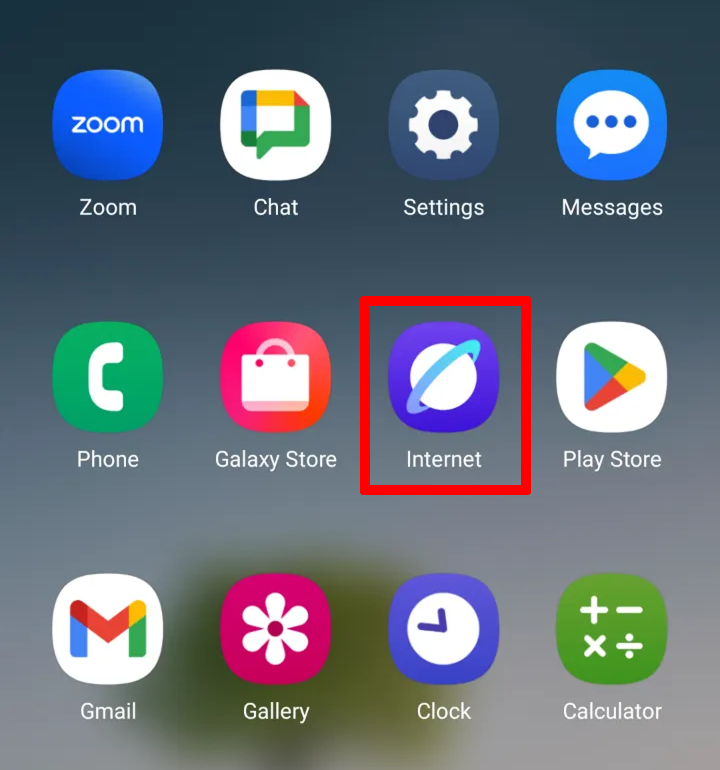
This is what the Samsung Internet app icon usually looks like:
How to join a Blitzz video call in Samsung Internet
Step 1: Open your invite link
Tap the link in your call invite (SMS, WhatsApp or email).
Step 2: Tap Connect
Tap Connect to join the session.
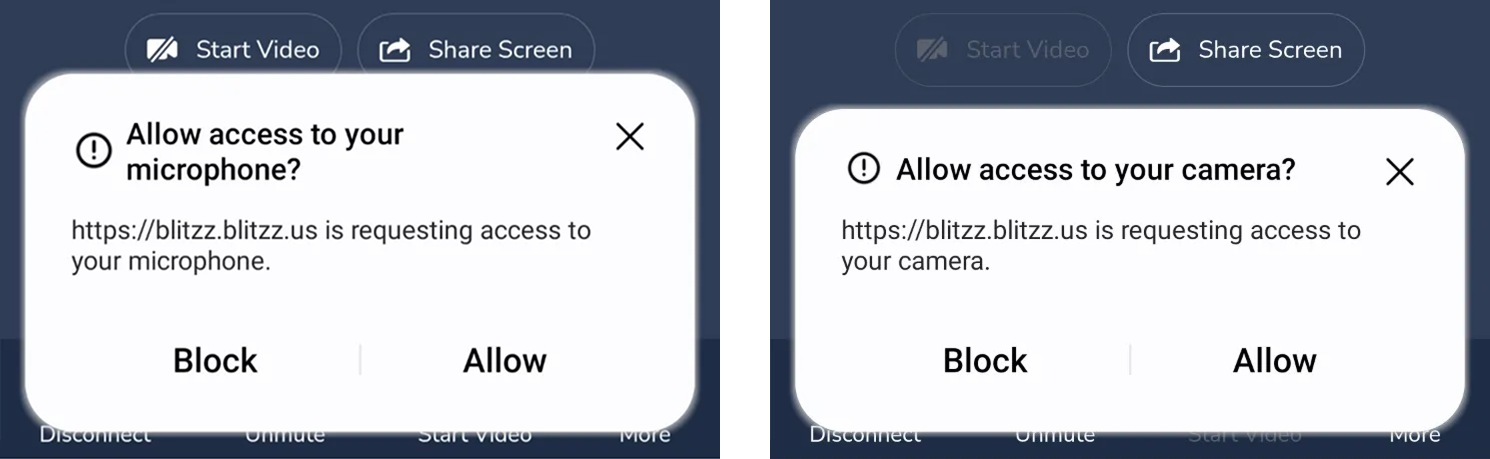
Step 3: Allow camera, microphone and location
When prompted, tap Allow to give access to your camera and microphone (and location, if your call requires it).
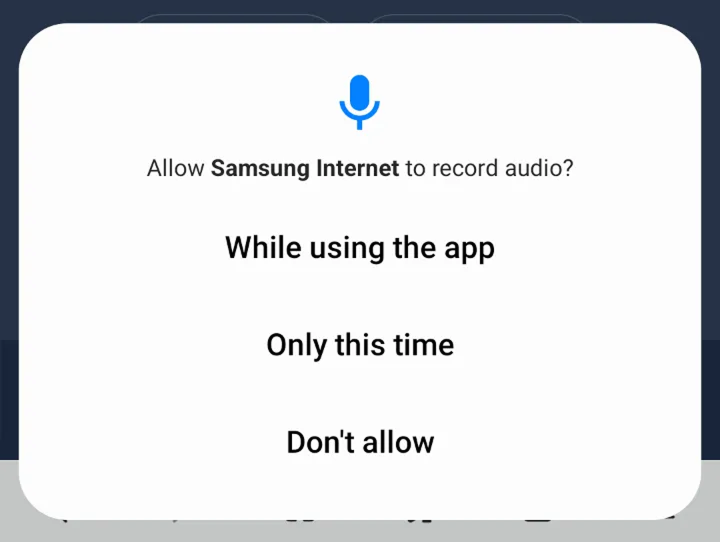
Step 4: Allow audio recording
Tap Allow when asked for permission to record audio.
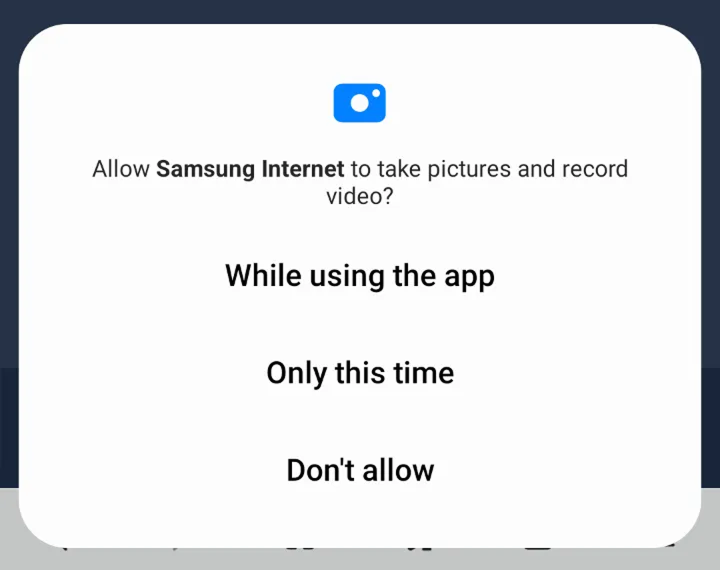
Step 5: Allow pictures and video
Tap Allow when asked for permission to take pictures and record video.
Tips for a smooth call
- Update Samsung Internet. If you don't see the permission prompts, update the browser to the latest version from the Galaxy Store or Google Play.
- Update your device. If the options still don't appear, check for a software update on your Samsung Galaxy device.
Frequently asked questions
Can I use Samsung Internet for Blitzz video calls?
Yes. Open your invite link in Samsung Internet, tap Connect and allow camera and microphone access.
Why don't I see the camera permission prompt?
Your browser or device may be out of date. Update Samsung Internet and your device software, then open the link again.