
Admins turn Blitzz AI features on or off per Collaboration Profile. Every user and department assigned to that profile gets the AI features you enable. You can keep AI off for some teams and on for others.
Before you start
- AI features must be activated for your Blitzz account. If you don't see them, contact your Blitzz Account Representative or support@blitzz.co.
- You need admin access to Settings.
- The Live Video collaboration mode must be on in the profile. AI tools appear under In Live Video Call Tools.
Turn on AI features
- In the Blitzz web app, open the user menu in the top right and select Settings.
- Go to Session Settings > Collaboration Profiles.
- Select the profile you want to update and click Edit.
- Scroll to In Live Video Call Tools.
- Turn on the AI features you want:
- AI Knowledge Base: turns on Agent Assist for agents in this profile. Under Configure AI Knowledge Base, choose All or select the knowledge bases agents can use.
- AI Agents (Self Assist): turns on customer-facing AI agents for this profile.
- AI Call Summary: generates a transcript and summary for each video session. Under Select AI Call Summary Profile, choose which summary format to use.
- Click Save.
Changes apply to new sessions started after you save.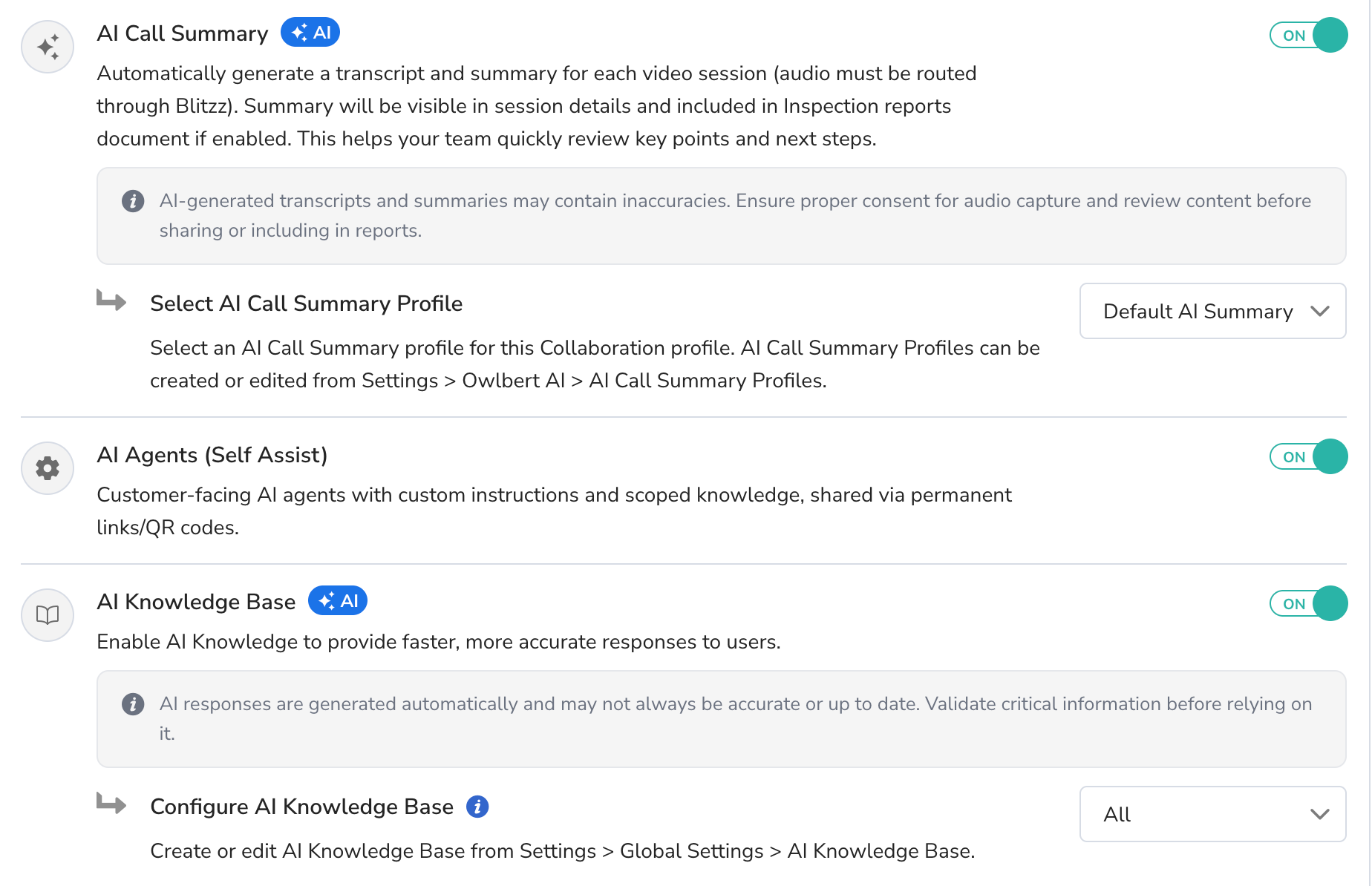
Turn off AI features
Follow the same steps and switch the feature off, then click Save. Turning off a feature in a profile does not delete your knowledge bases, AI agents or summary profiles.
Good to know
- AI Call Summary needs session audio to be routed through Blitzz.
- Make sure participants have given proper consent for audio capture before you use AI Call Summary.
- AI responses and summaries may contain mistakes. Review them before acting on them or sharing them.
- Use Audit Logs in the Collaboration Profile to see who changed AI settings and when.