
Blitzz Support may ask for a HAR file to help troubleshoot your case. Here's how to create one in Chrome.
What is a HAR file?
An HTTP Archive (HAR) file is a JSON file that records your browser's recent network activity.
How to create a HAR file in Google Chrome
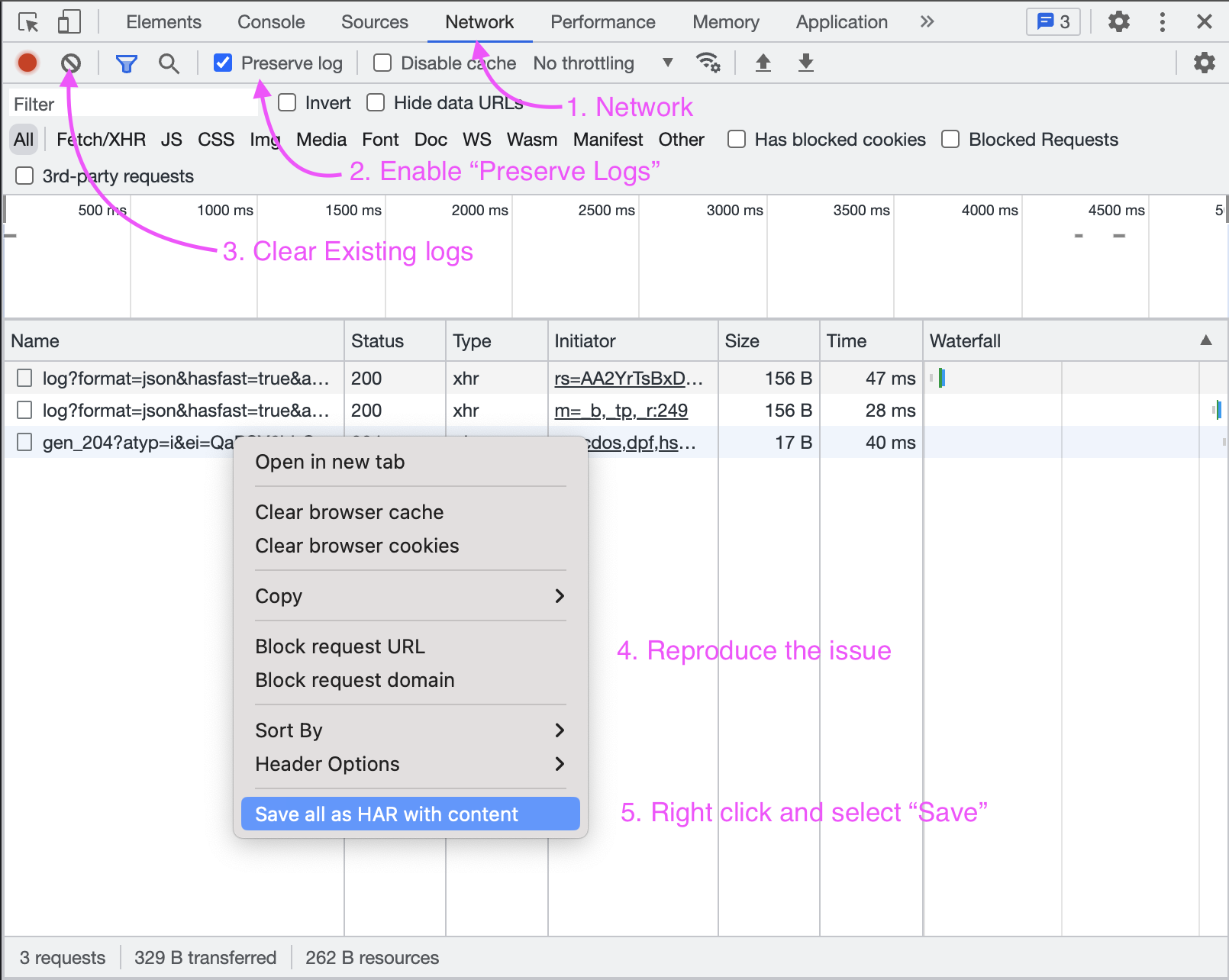
- Click the three dots in the top right corner, then More tools > Developer Tools.
- In DevTools, open the Network panel.
- Check Preserve log.
- Click Clear to remove existing network requests.
- In the Blitzz portal, reproduce the issue from your support case.
- In DevTools, right-click any network request.
- Choose Save all as HAR with content and save the file.

Frequently asked questions
Is a HAR file safe to share?
HAR files can include sensitive data, such as session cookies and the content of pages you visited. Share it only with Blitzz Support through your support case.