
You can replace your real background with a professional image or another video source on Blitzz desktop calls using ManyCam. ManyCam can also adjust lighting and add virtual effects.
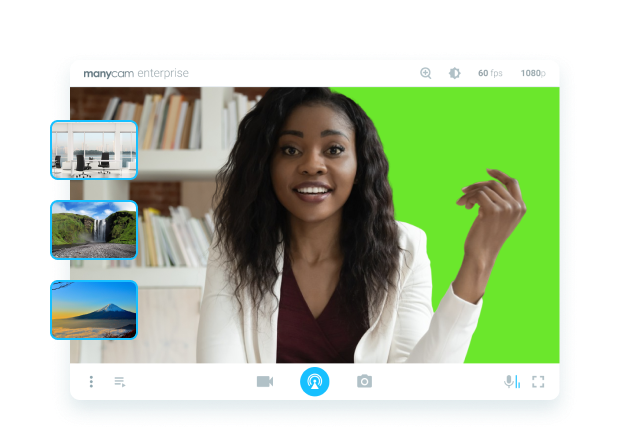
Note: ManyCam is a third-party app and is not part of the Blitzz platform. It does not work on mobile.
How to set up ManyCam for Blitzz
- Download the ManyCam desktop app. Review its terms and make sure they fit your company's policies before installing.
- Install and open ManyCam.
- Pick a background. Keep ManyCam open but minimized to save CPU.
- Open (or restart) Chrome and open the Blitzz web app.
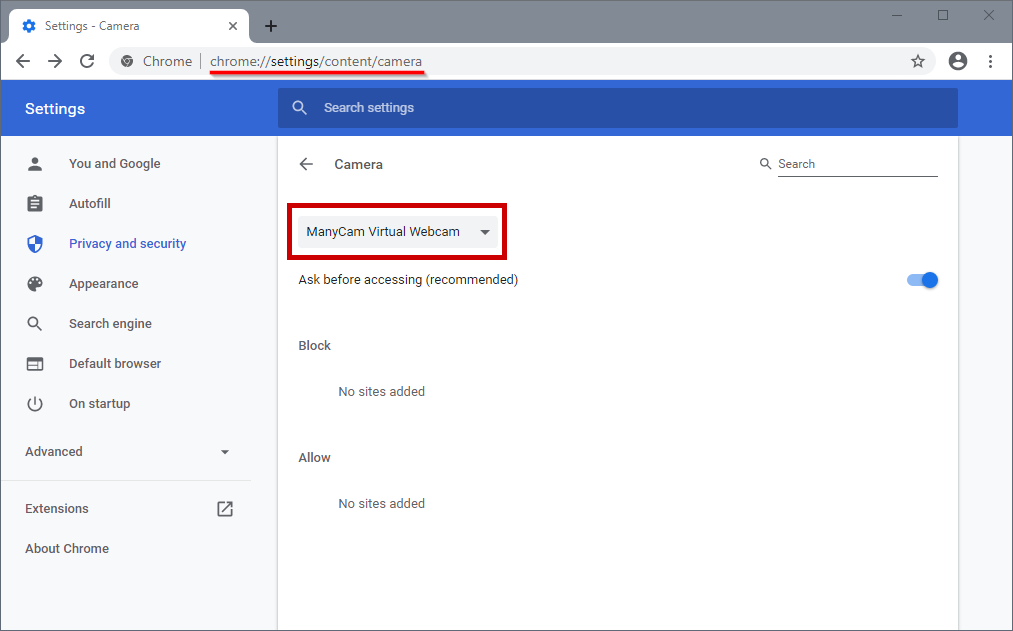
- Set ManyCam as Chrome's default camera: click the Chrome menu (top right) > Settings > Privacy and security > Site settings > Camera. If ManyCam isn't listed, see this guide.
- Open Blitzz in Chrome and start your call.
Tips for a better virtual background
- Sit in front of a single solid color that doesn't match your skin, hair or clothes, such as an empty wall or a colored sheet. A green screen also works well.
- Light your face and upper body well. More light from the front and less from the ceiling works best.
- ManyCam adds a lot of CPU load. Keep this in mind on lower-powered computers.
Frequently asked questions
Does Blitzz have built-in virtual backgrounds?
This guide uses ManyCam, a third-party app, to add virtual backgrounds on desktop.
Can I use a virtual background on mobile?
No. This setup only works on desktop.