
AI Call Summary Profiles let admins control how Owlbert AI writes summaries for your team's sessions. For example, an inspection team can get Inspection Findings and Defect Severity, while a support team gets Root Cause and Action Items.
Create a summary profile
- Open the user menu in the top right and select Settings.
- Go to Owlbert AI > AI Call Summary Profiles.
- Click Add and give the profile a name.
- Complete the three setup sections below.
- Click Preview Changes to check the result, then click Save.
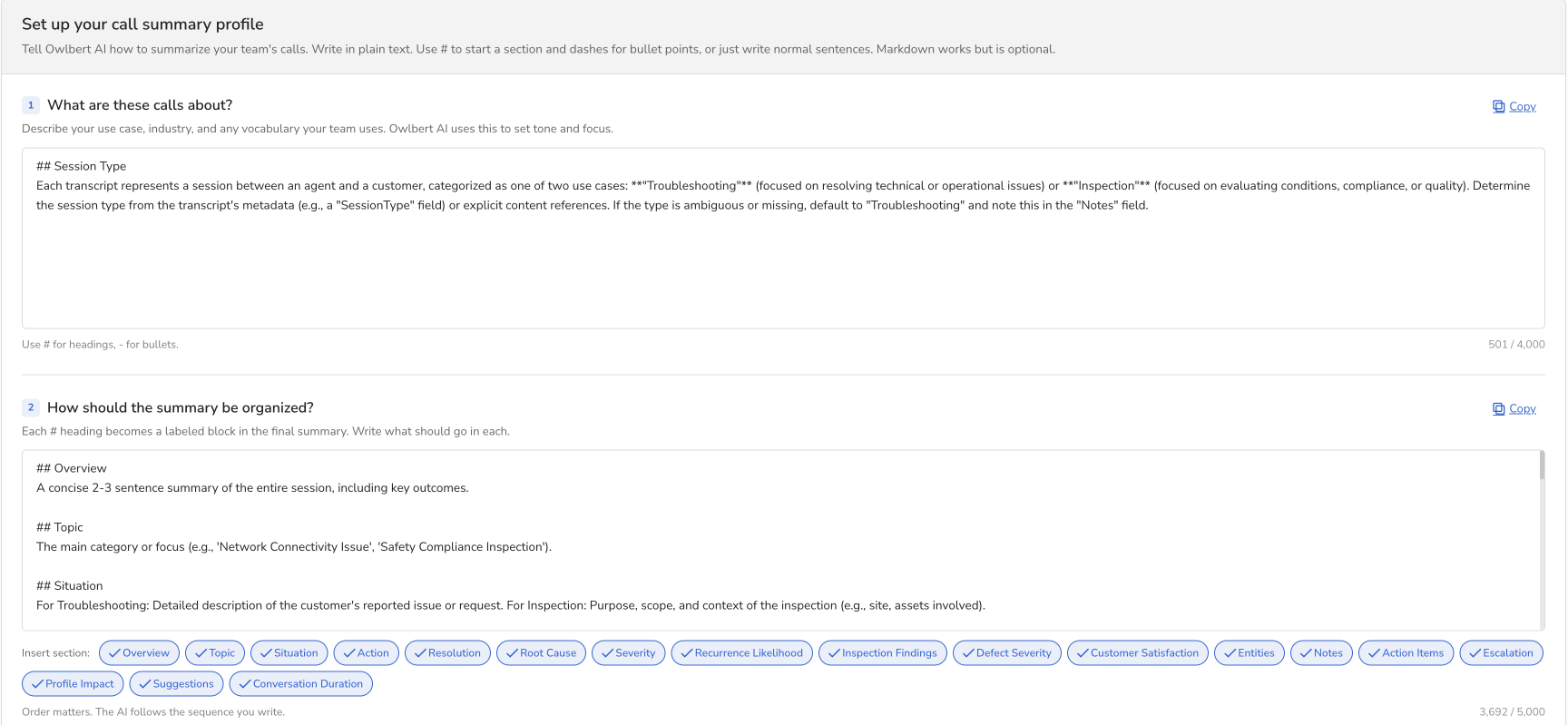
Section 1: What are these calls about?
Describe your use case, industry and any vocabulary your team uses. Owlbert AI uses this to set the tone and focus of each summary. Write in plain text. Use # for headings and dashes for bullet points if you like.
Section 2: How should the summary be organized?
Each # heading becomes a labeled block in the final summary. Write what should go in each one. Order matters, because the AI follows the sequence you write. Use Insert section to add common blocks, including:
- Overview, Topic, Situation, Action and Resolution
- Root Cause, Severity and Recurrence Likelihood
- Inspection Findings and Defect Severity
- Customer Satisfaction and Escalation
- Entities, Notes, Action Items and Suggestions
- Conversation Duration
Section 3: Anything special?
Add priority callouts, flags or conditional rules. Use Quick add to insert common rules:
- Pin priority at top
- Redact PII
- Flag escalation language
- Flag SLA breach
- Include timestamps
- Translate to English
- Auto detect call type
- Detect upsell signals
- Duration calculation rules
Use the profile
- Go to Settings > Session Settings > Collaboration Profiles.
- Select a profile and click Edit.
- Make sure AI Call Summary is on.
- Under Select AI Call Summary Profile, choose your new profile.
- Click Save.
Good to know
- Use Reset to default to restore the original settings. Anything you wrote will be replaced.
- The profile page shows which Collaboration Profiles use it.
- Use Audit Logs to see who changed a profile and when.
- Rules such as Redact PII are instructions to the AI. Review summaries before sharing them outside your team.