
Blitzz Cobrowse for HubSpot — Installation Guide
This guide walks you through setting up Blitzz Cobrowse inside HubSpot, so your agents can see exactly what a customer sees and guide them in real time — straight from a Help Desk ticket. It takes you from installing all the way to your first live session.
Table of Contents
- Before you begin
- Step 1: Connect Blitzz to your HubSpot account
- Step 2: Add the Blitzz Cobrowse script to your website
- Step 3: Add the Blitzz Cobrowse card where your agents work
- Step 4: Your customer asks for help
- Step 5: The ticket reaches your agent
- Step 6: Start a cobrowse session — two ways to connect
- Step 7: See their screen and solve it together
Before you begin
Make sure you have the following ready:
- A Blitzz account with Cobrowse enabled, and access to your Cobrowse portal (where your license key and install script live).
- A HubSpot account with a Help Desk / Service workspace where your agents work on tickets.
- Permission in HubSpot to install marketplace apps and to customize record & help desk sidebars.
Step 1: Connect Blitzz to your HubSpot account
First, connect the Blitzz app to your HubSpot account. This is what makes the Blitzz Cobrowse cards available inside your CRM records and Help Desk.
Follow the official app installation steps in the Blitzz for HubSpot — Installation Guide.
Step 2: Add the Blitzz Cobrowse script to your website
For Blitzz to connect to your customers, a small Cobrowse script must run on the web page(s) where your customers will ask for help.
- In your Cobrowse portal, open Settings → Installation. You'll see your License Key and a ready-made script under "Manually insert your script tag in your application." Click Copy Code to copy your own version (it already contains your license key).
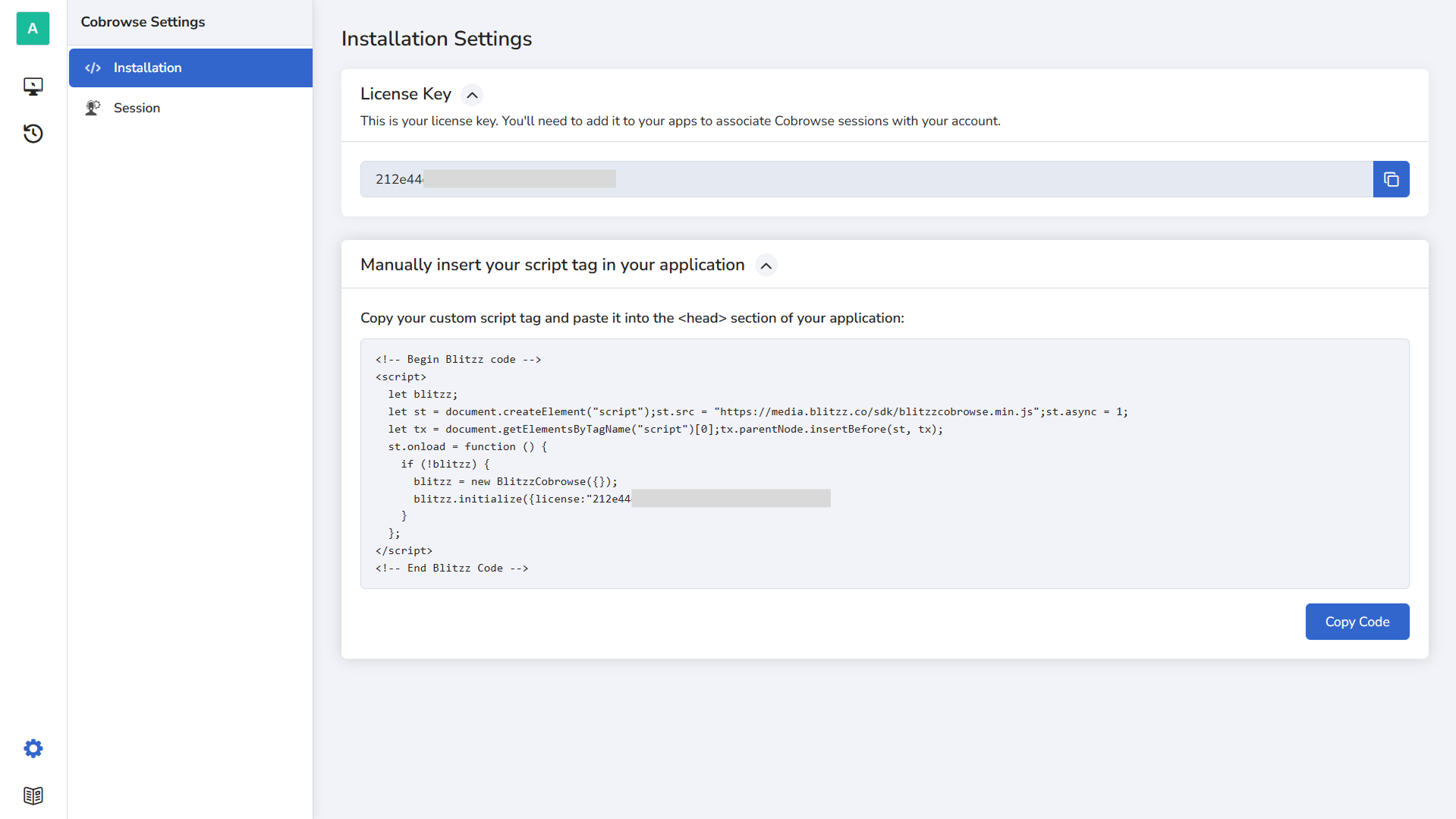 Your install script and license key live in the Cobrowse portal under Settings → Installation.
- When you're using Cobrowse inside HubSpot, add
isHubSpot: trueto theinitializeoptions — that's the only change needed for HubSpot. Paste the final snippet into the<head>of your website:<!-- Begin Blitzz code --> <script> let blitzz; let st = document.createElement("script"); st.src = "https://media.blitzz.co/sdk/blitzzcobrowse.min.js"; st.async = 1; let tx = document.getElementsByTagName("script")[0]; tx.parentNode.insertBefore(st, tx); st.onload = function () { if (!blitzz) { blitzz = new BlitzzCobrowse({}); blitzz.initialize({ license: "YOUR_LICENSE_KEY", isHubSpot: true }); } }; </script> <!-- End Blitzz Code -->
license value is correct, then just add isHubSpot: true to the initialize options.A note on your HubSpot chat widget. This guide assumes the HubSpot chat widget is already on your website — most teams add it (or customize it) as part of their normal HubSpot setup. Blitzz Cobrowse works alongside it; you don't need to change how your chat is installed. Just make sure the Blitzz script above runs on the same pages where your chat appears.
Step 3: Add the Blitzz Cobrowse card where your agents work
Next, make the Blitzz Cobrowse card visible to your agents. Blitzz provides a card for each surface:
- Blitzz Cobrowse — CRM record page
- Blitzz Cobrowse (Sidebar) — CRM record sidebar
- Blitzz Cobrowse (Preview) — CRM record preview
- Blitzz Cobrowse (Help Desk) — Help Desk ticket sidebar (Recommended)
The CRM cards work on Contact, Company, Deal, and Ticket records; the Help Desk card works on Tickets. For live chat support, we recommend the Help Desk card.
In HubSpot, open your connected apps → Blitzz → Settings → App cards and click Manage locations on the card you want — for example, Blitzz Cobrowse (Help Desk).
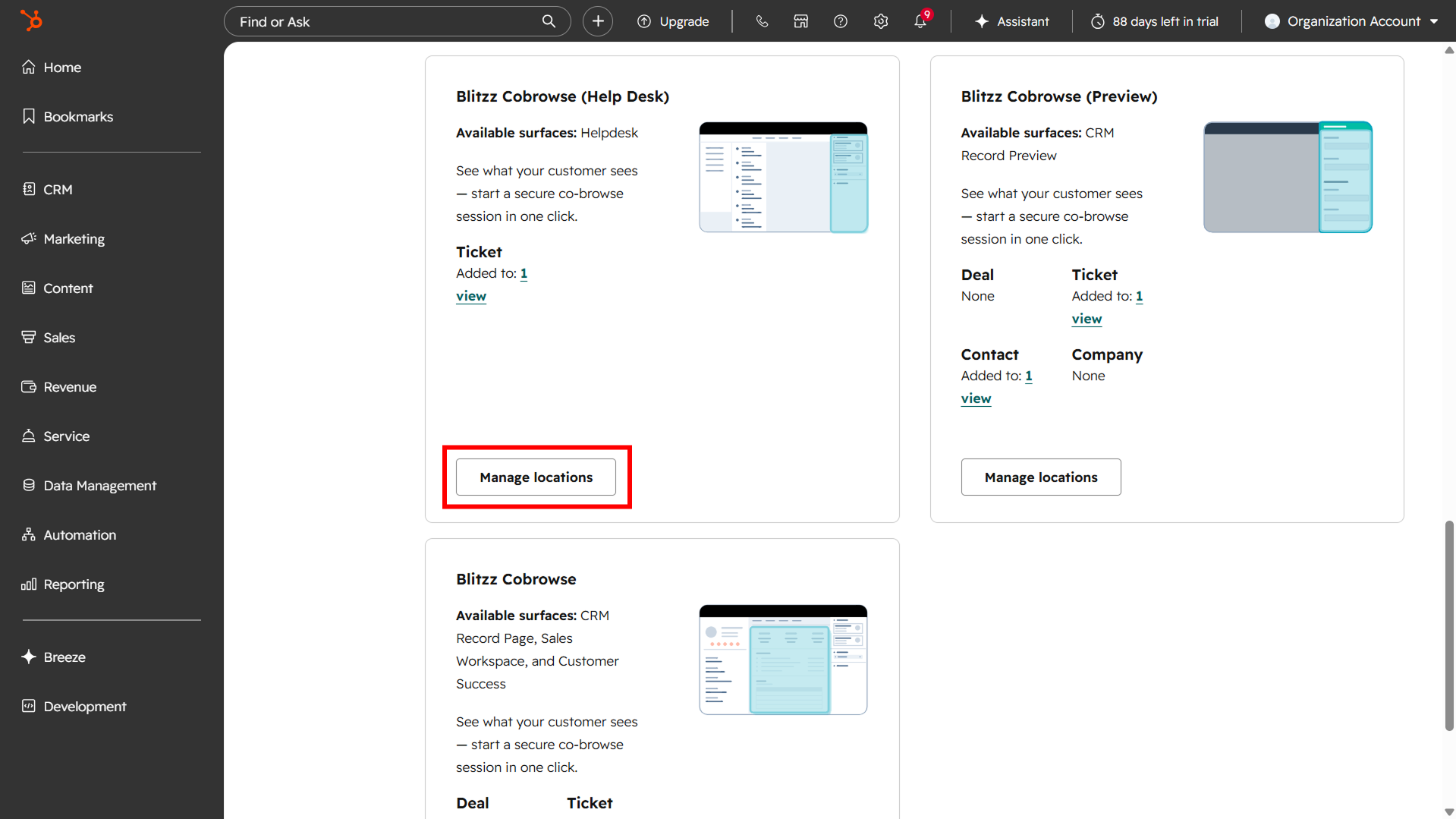 Each Blitzz Cobrowse card lists the surfaces it supports and a Manage locations button.
Selecting the Default view adds the card to the bottom of the chosen column or sidebar. To control exactly where the card sits, click Customize.
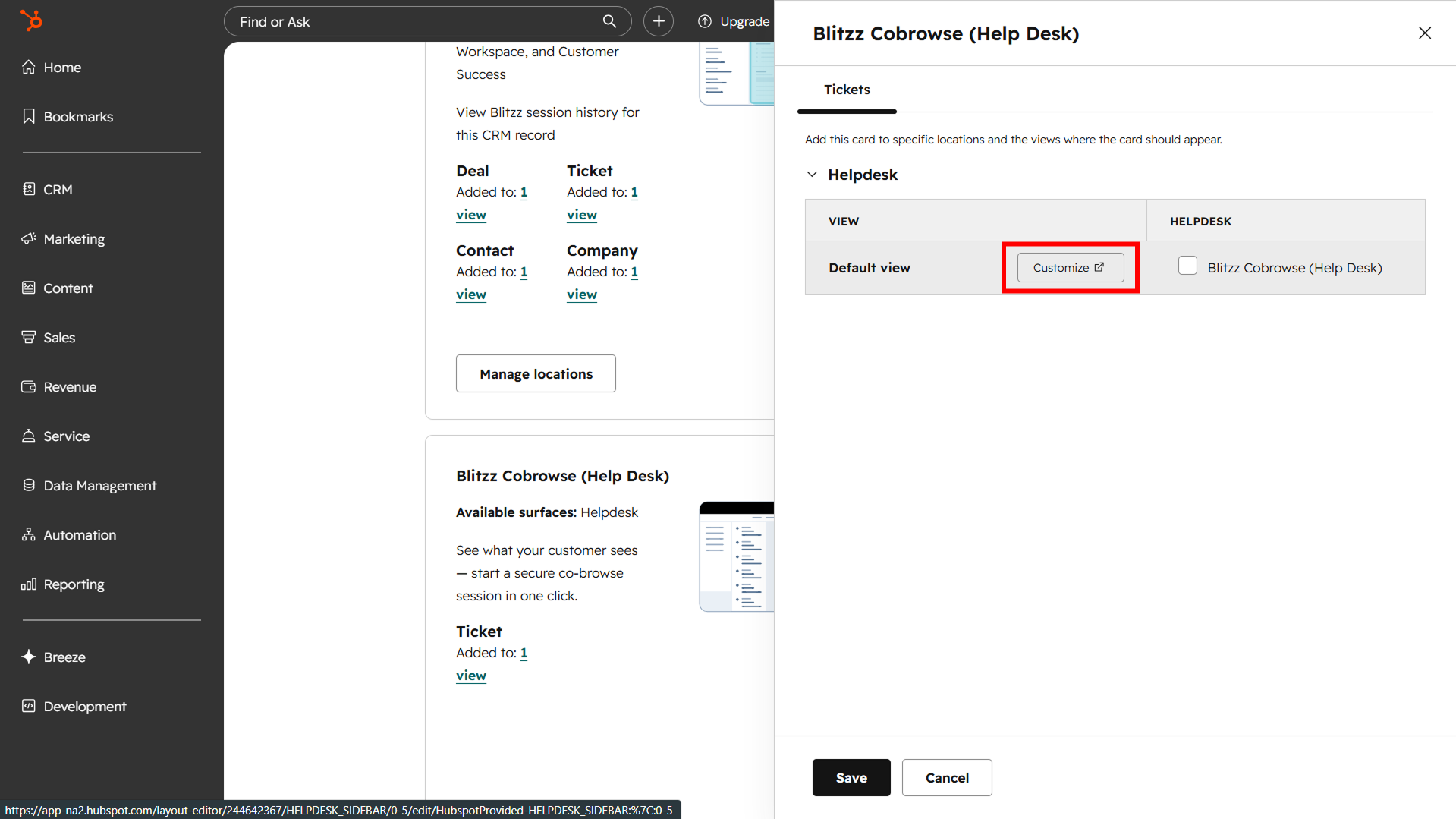 Manage locations — choose the view, then Customize to control the card's position.
Click Add card, open the Card library tab, search for the
Blitzz Cobrowse, click Add card, then click Save.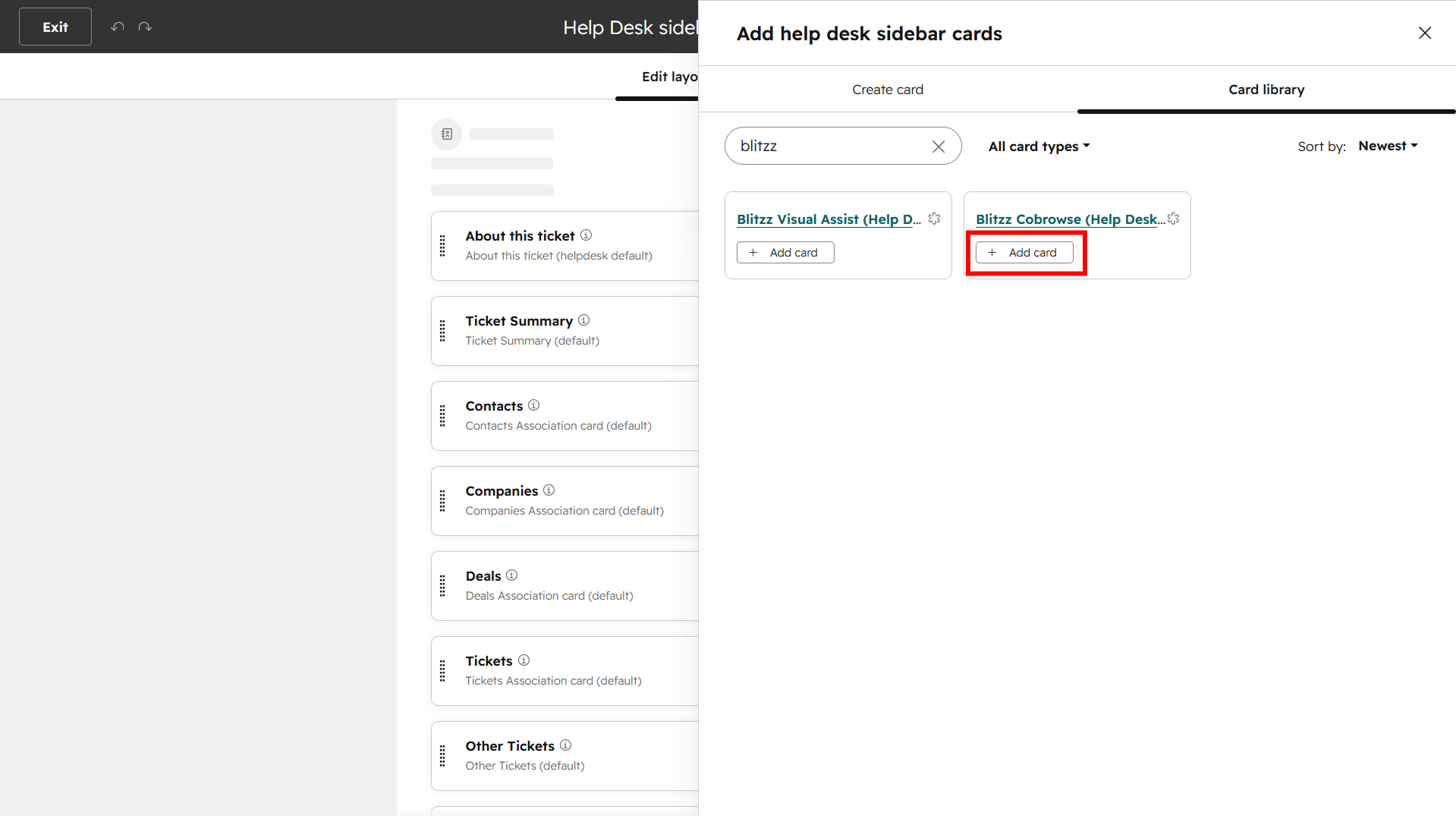 Add the Blitzz Cobrowse card from the Card library. Or, from a Help Desk ticket
You can also start this directly while viewing a ticket: go to Service → Help Desk, open any ticket, and in the top-right, click the settings/sidebar icon → Customize the sidebar. Then add the card from the Card library as above and Save.
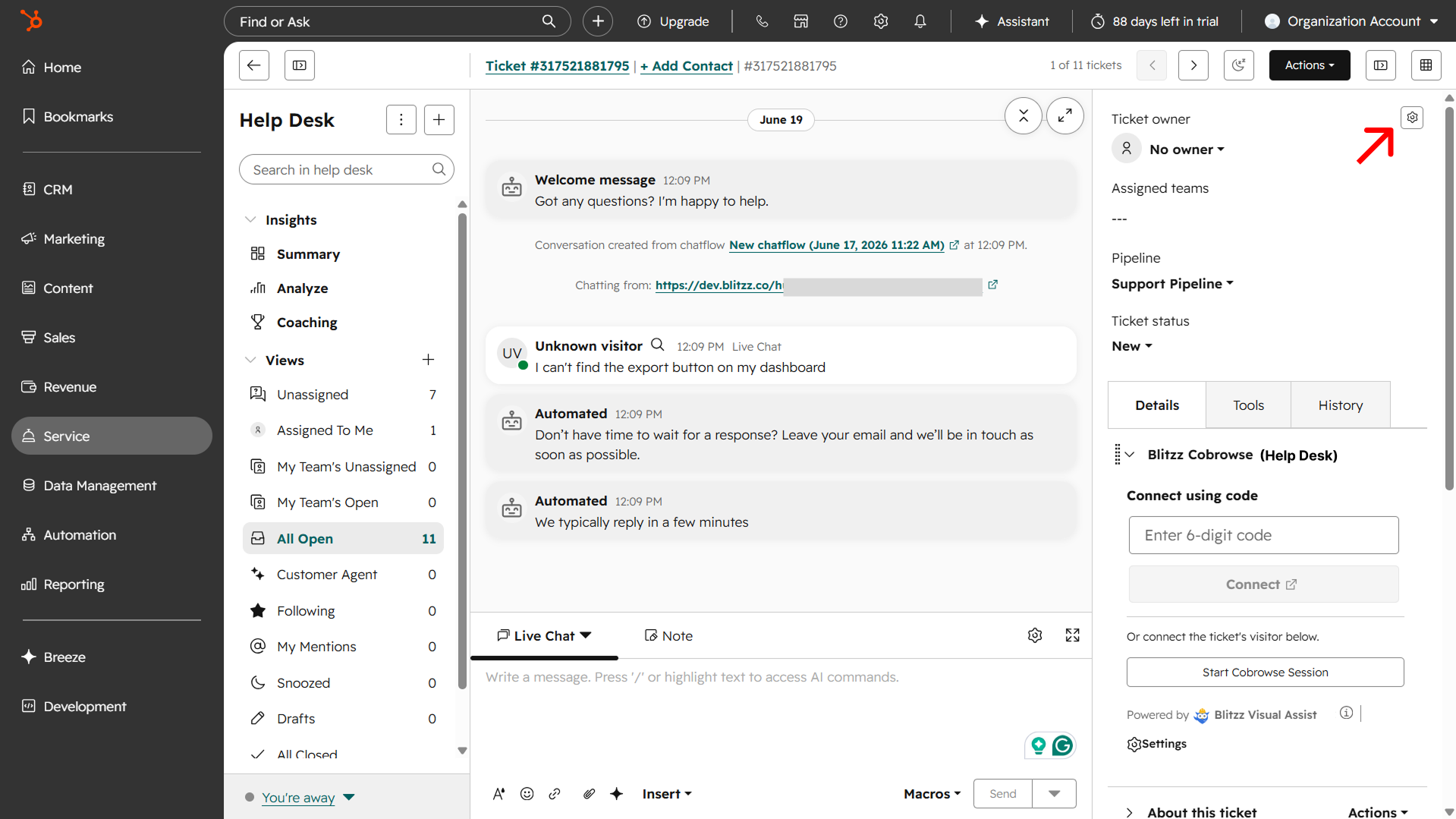 From a ticket, open the settings icon to customize the sidebar.
Step 4: Your customer asks for help
With the script in place, your customer simply uses your website as usual.
- The customer browses your site as they normally would — no extra steps for them.
- When they need help, they open your web chat and describe their problem — for example, "I can't find the export button on my dashboard."
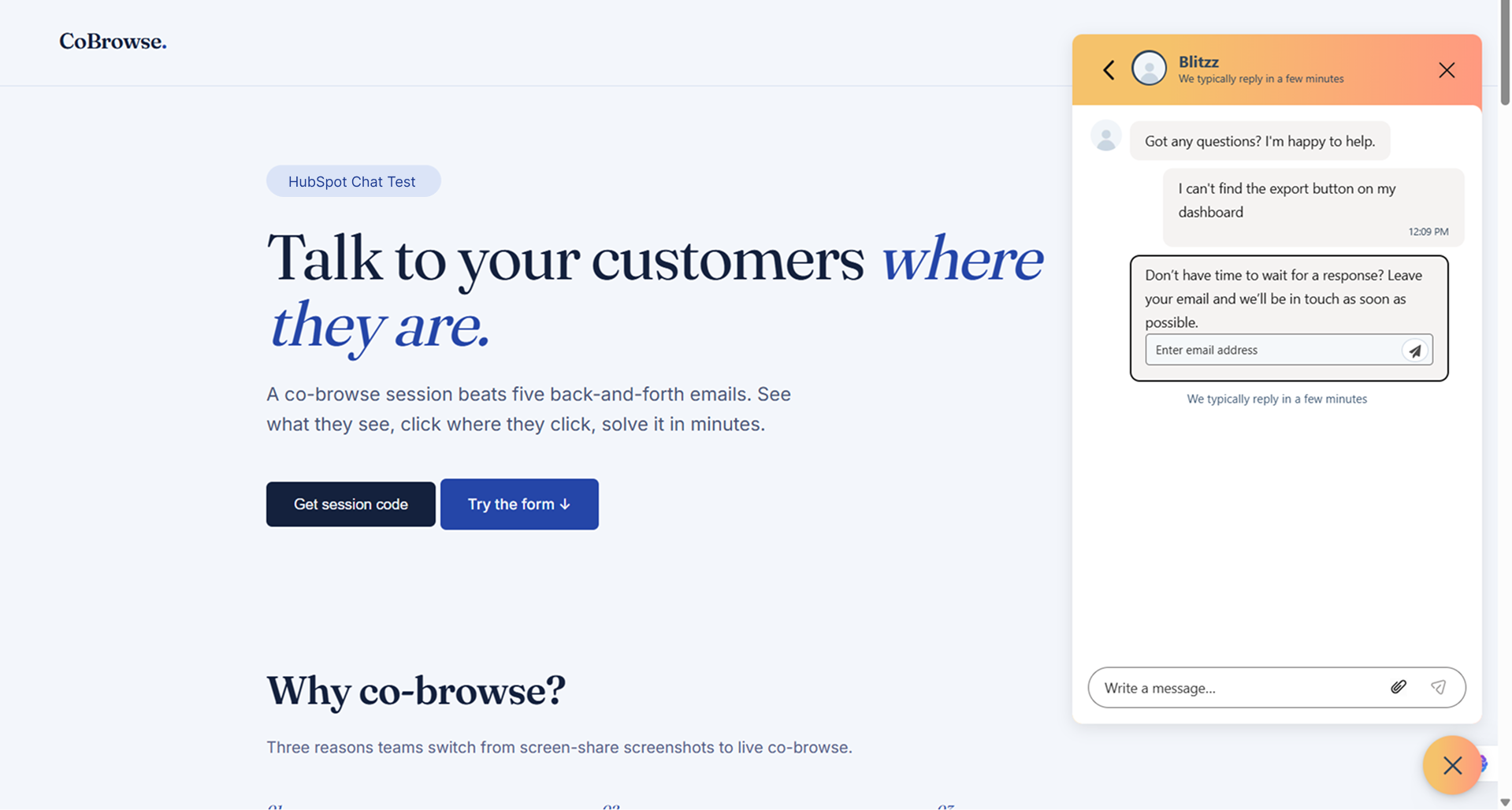 The customer opens chat on your site and asks for help.
Step 5: The ticket reaches your agent
- In HubSpot, go to Service → Help Desk. The conversation arrives as a ticket and is routed to an agent based on your routing/availability rules. The agent opens the ticket in the Help Desk view.
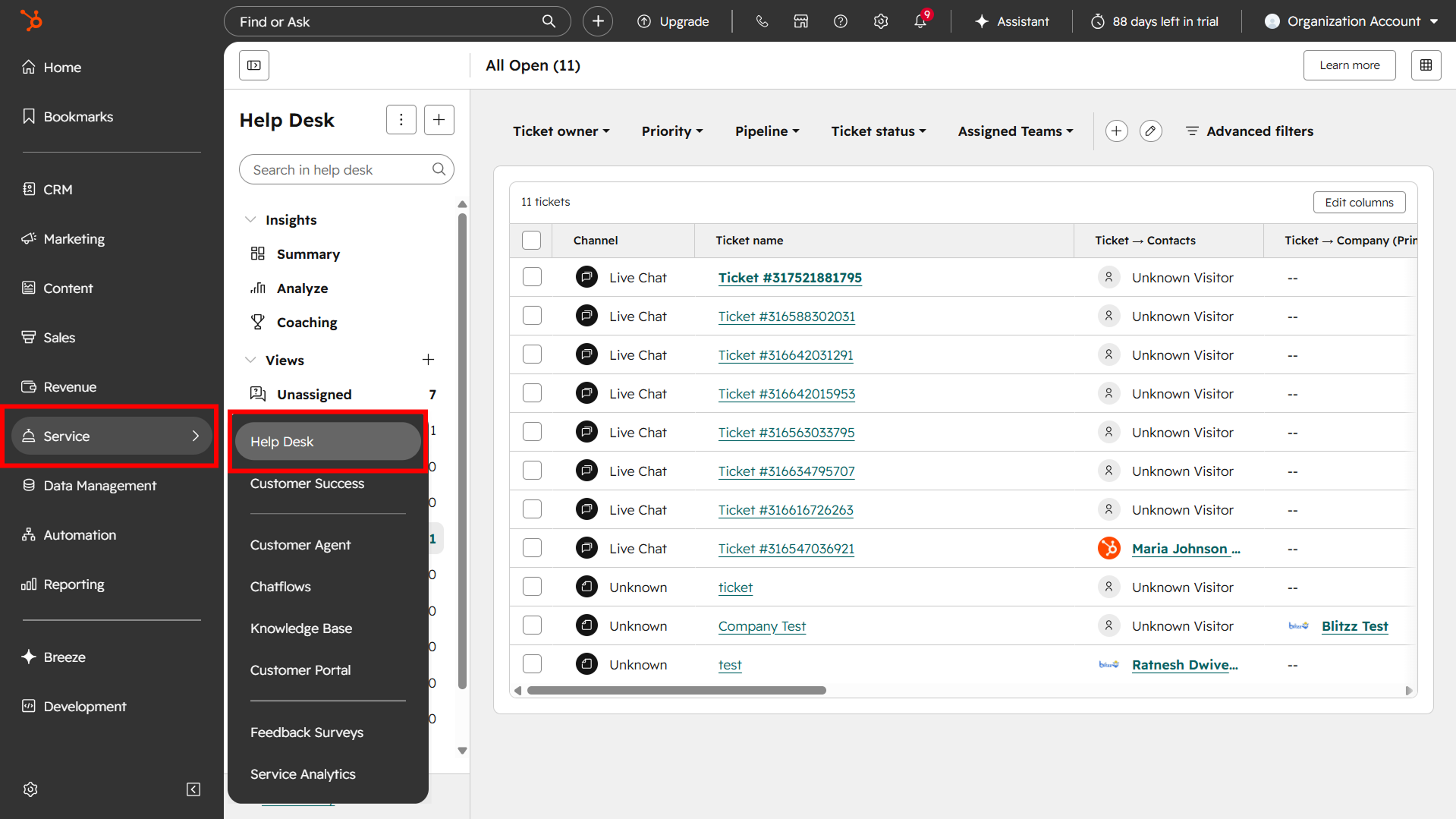 Incoming chats appear as tickets in the Help Desk.
 - In the ticket's right sidebar, the agent sees the Blitzz Cobrowse (Help Desk) card you added in Step 3.
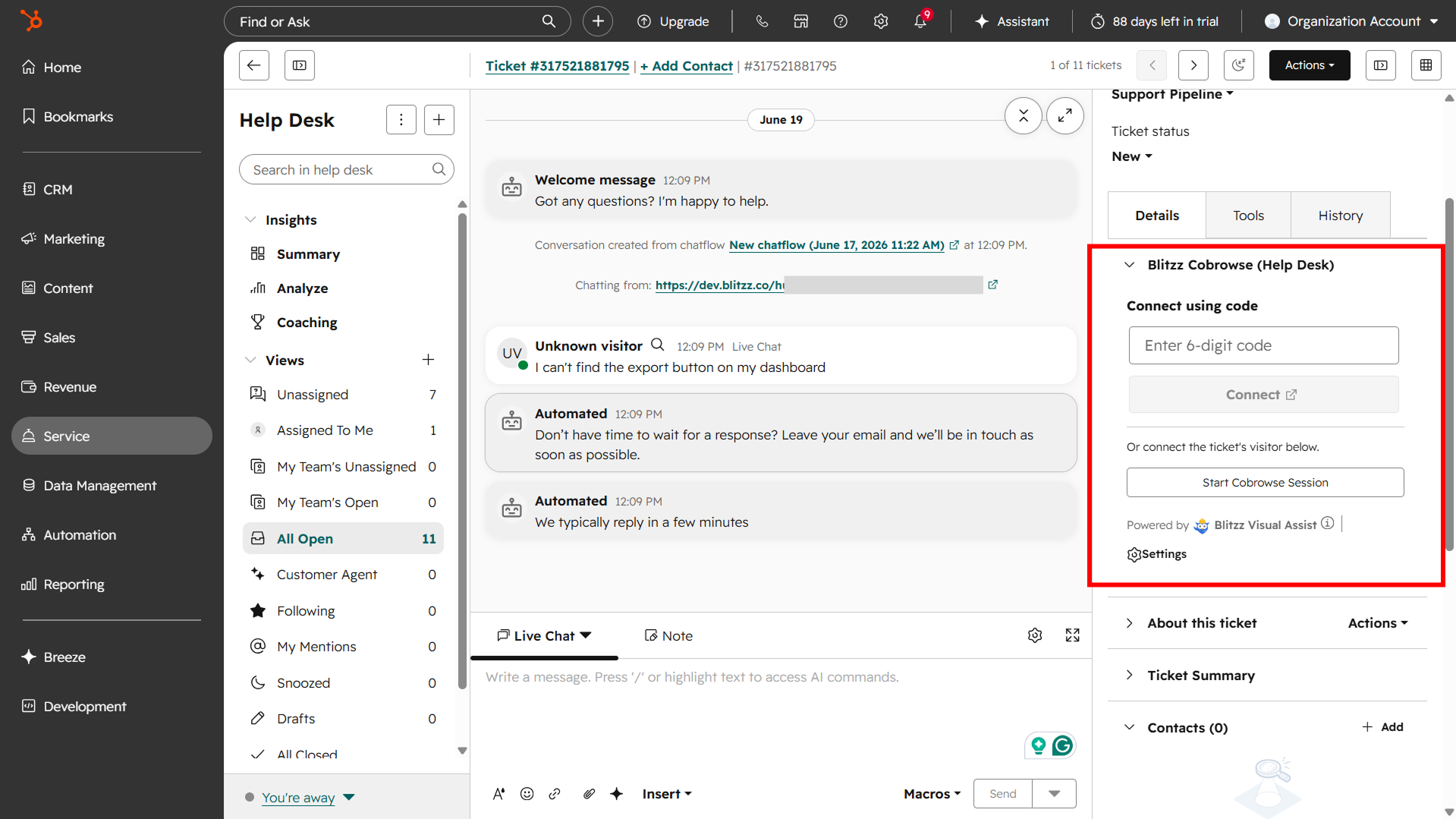 The Blitzz Cobrowse card on the ticket — your two ways to connect.
Step 6: Start a cobrowse session — two ways to connect
Option 1: Connect using code
Use this when the customer has a 6-digit code to share — for example, when you've added a "Start cobrowse" button on your website.
- The customer clicks that button and gets a 6-digit code, then passes it to the agent through the chat. (See: Starting a cobrowse session with the click of a button.)
- The agent enters that code in Connect using the code on the card and clicks Connect.
- The session opens in a new tab and connects both sides.
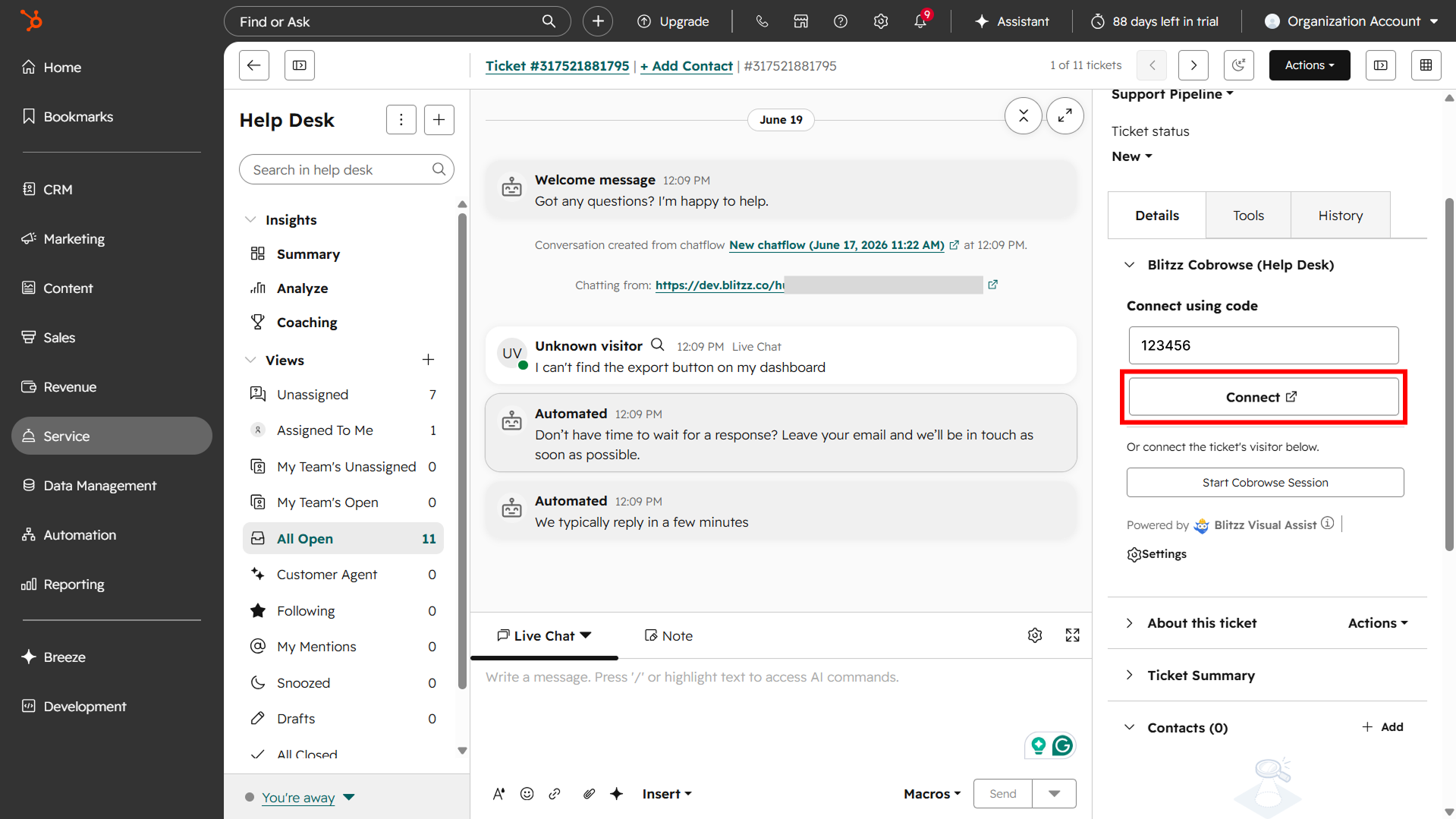
Option 2: Start Cobrowse Session button
This is the one-click flow on the Help Desk card.
- The agent clicks Start Cobrowse Session.
- Blitzz opens a "Reaching the visitor" dialog and looks for the active device tied to this ticket. Because the customer's chat page is open and focused, Blitzz finds and matches it automatically.
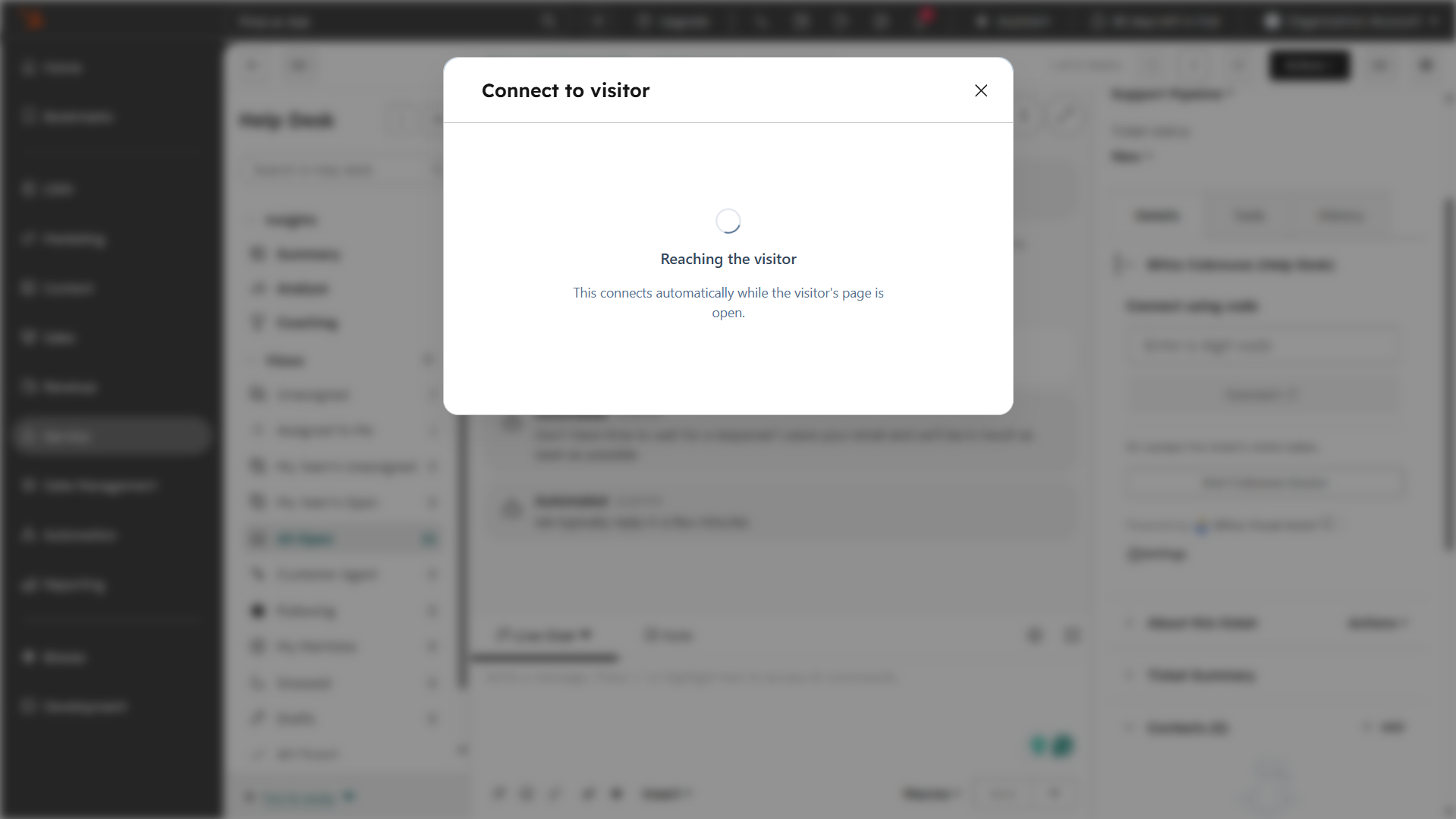 Start a Cobrowse Session reaches the visitor automatically while their page is open.
 - The agent is redirected to a new tab, and the session connects.
The customer approves the request
For privacy, the customer is always asked to approve before the agent can view their screen. They see a prompt — "An agent would like to temporarily use this web page with you. Do you want to allow this?" — and click Accept.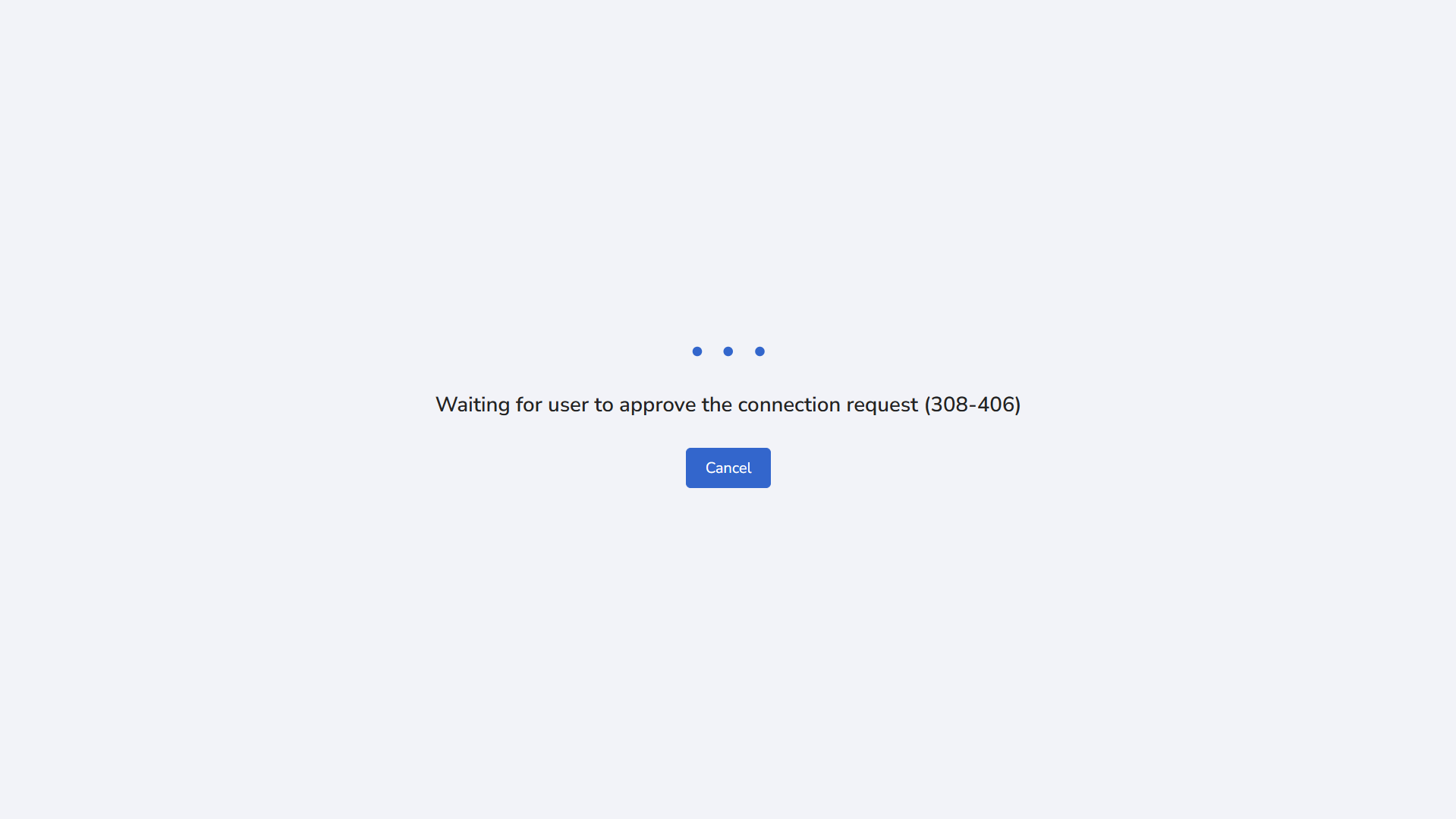 The agent waits while the customer approves the request.
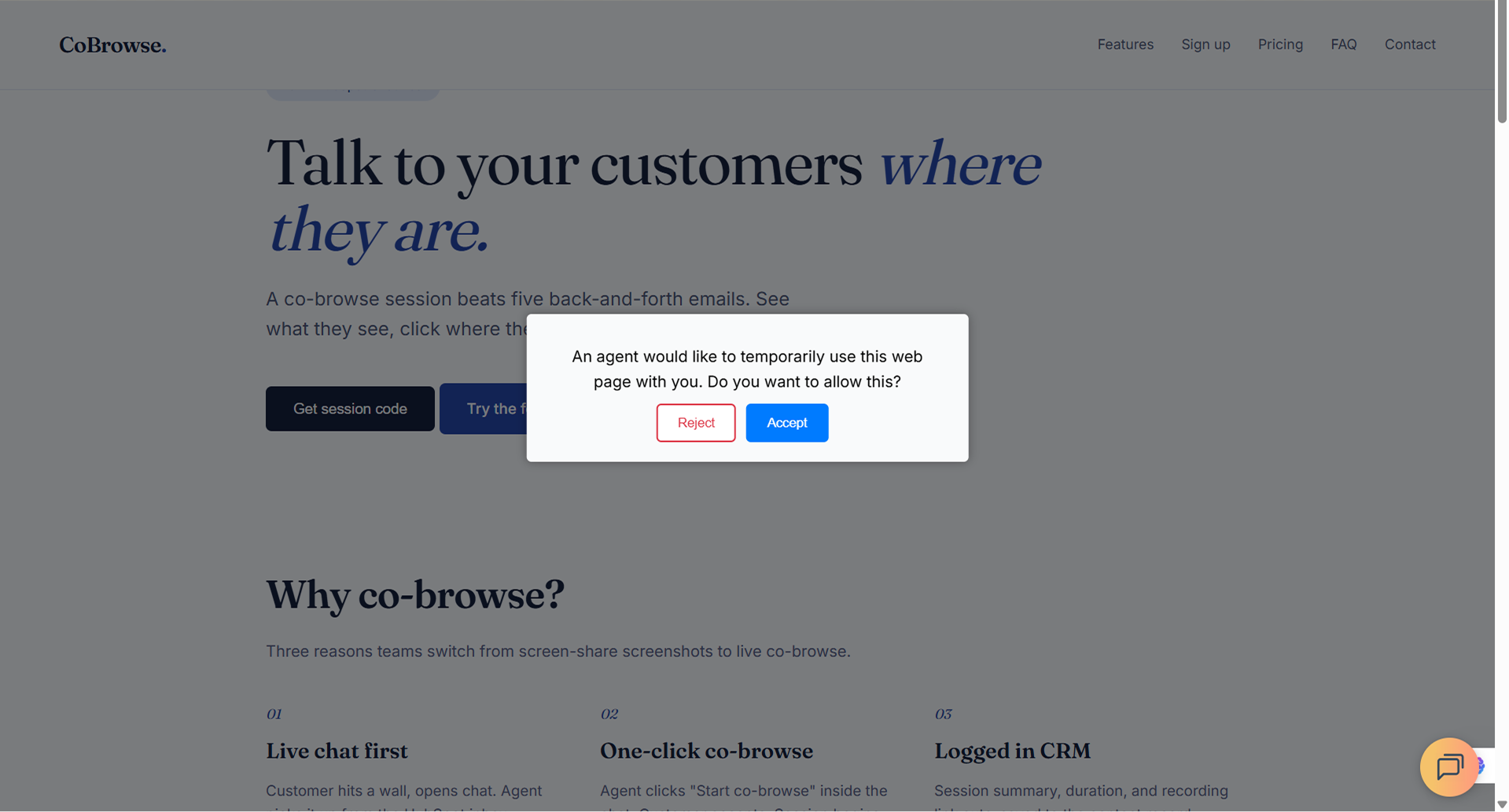 The customer must accept before the session begins.
Step 7: See their screen and solve it together
Once the customer accepts, the cobrowse session goes live. The agent can see the customer's page in real time, point things out, and guide them to the solution — for our example, showing them exactly where the export button is. The customer stays right on the page they were already using — nothing new opens on their side. When you're done, click End Session.
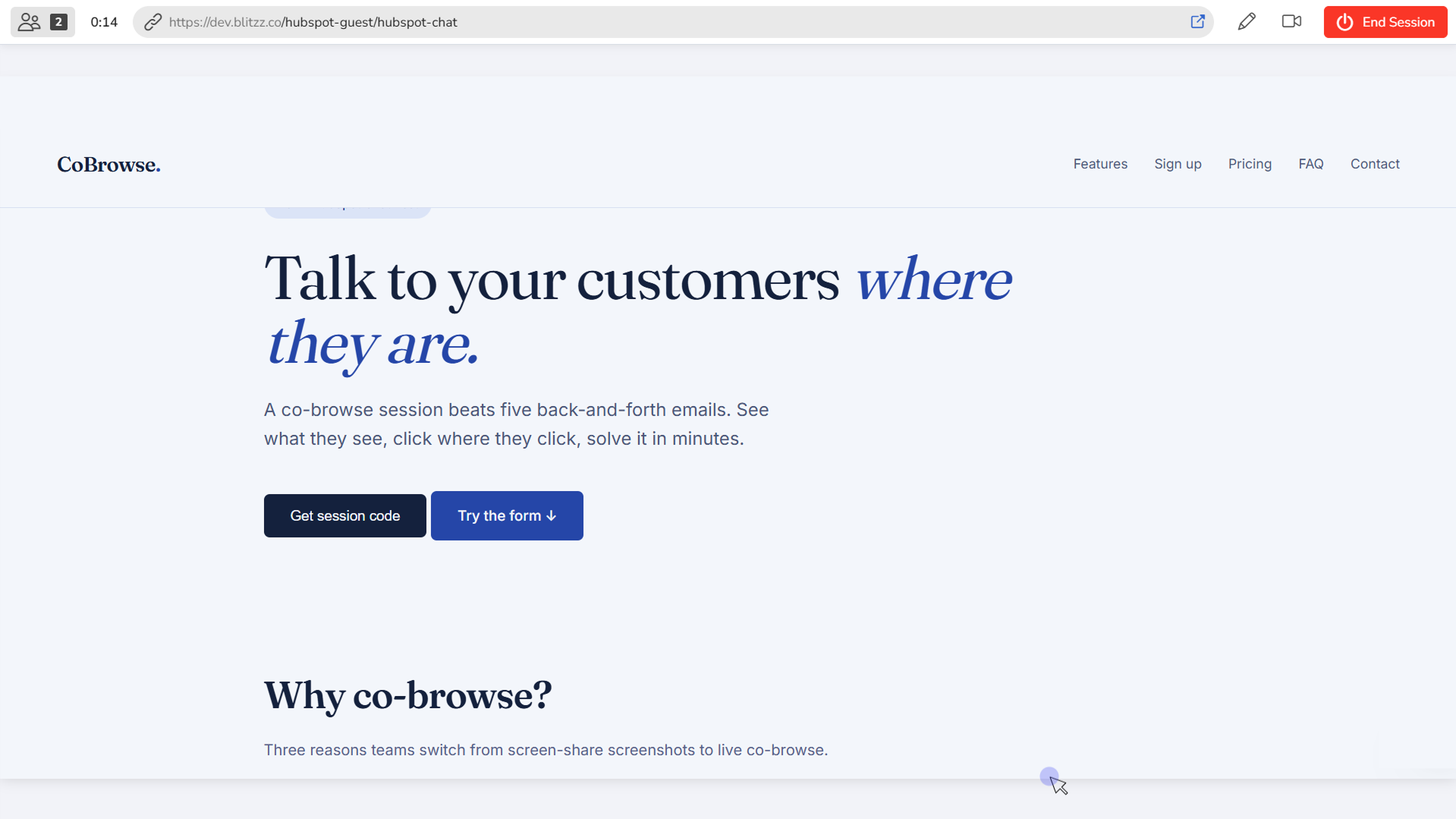 A live cobrowse session — see what the customer sees and solve it together.
If you run into trouble or just need a little help, please contact us, and we will be happy to help.